# How To: Set up a printer

> **📘 Purpose**  
> This guide walks through process of setting up a printer in the device's settings.

---

## 🔁 Step-by-Step Instructions

#### 1. Click on the Windows icon located in your task bar.

#### 2. Next, click on the settings icon in the new menu.

![image.png](https://wiki.actiontarget.com/uploads/images/gallery/2025-09/scaled-1680-/CWyimage.png)

<p class="callout info">If the settings icon does not appear here, you can instead type "settings" in the search bar and open the application that way.</p>

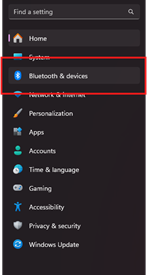
#### 3. In the menu on the left, click on the "Bluetooth and Device" option.
![image.png](https://wiki.actiontarget.com/uploads/images/gallery/2025-09/scaled-1680-/8kNimage.png)

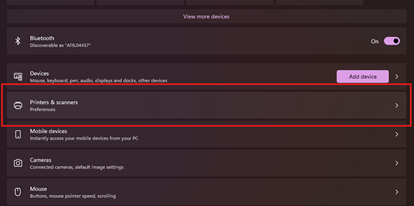
#### 4. In the new menu that appears on the right of the screen, click the "Printers &amp; Scanners" option.  


![image.png](https://wiki.actiontarget.com/uploads/images/gallery/2025-09/scaled-1680-/6sFimage.png)

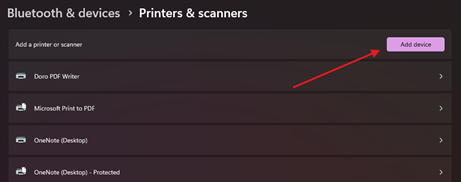
#### 5. Click on the "Add Device" button located at the top of the list.
![image.png](https://wiki.actiontarget.com/uploads/images/gallery/2025-09/scaled-1680-/b6Jimage.png)

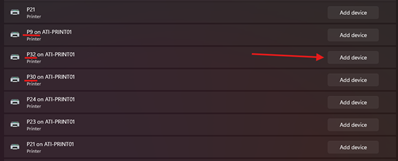
#### 6. Find the printer you want to set up by using the printer ID in its name.

<p class="callout info">The printer ID is labeled on the physical printer</p>

#### 7. Press the add device button to the right of your desired line.
![image.png](https://wiki.actiontarget.com/uploads/images/gallery/2025-09/scaled-1680-/51Gimage.png)

#### 8. The printer will begin setting up automatically. Once completed it can be used as normal.

---

## 🧠 Additional Notes &amp; FAQ

---

> **📅 Last reviewed:** `2025-09-22`  
> **Author:** `Tanner Bench`  
> **Related Tags:** `How-To:`