# Overview of Customer Accounts

##### **Header** 
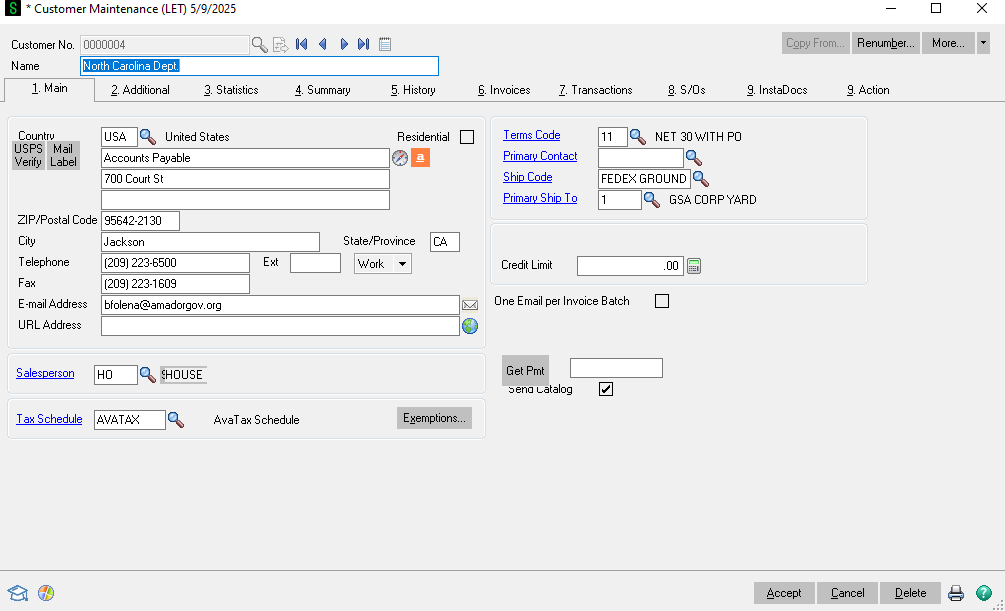
![image.png](https://wiki.actiontarget.com/uploads/images/gallery/2025-10/scaled-1680-/X81image.png)

<div id="bkmrk-under-the-header-tab">Under the header tab you can see:</div><div id="bkmrk-%E2%80%A2-customer-name%C2%A0">• Customer Name </div><div id="bkmrk-%E2%80%A2-customer-number%C2%A0">• Customer Number </div><div id="bkmrk-%E2%80%A2-country%C2%A0">• Country </div><div id="bkmrk-%E2%80%A2-billing-address%C2%A0">• Billing Address </div><div id="bkmrk-%E2%80%A2-telephone-number%C2%A0">• Telephone number </div><div id="bkmrk-%E2%80%A2-email-address">• Email address</div><div id="bkmrk-%E2%80%A2-salesperson%C2%A0">• Salesperson </div><div id="bkmrk-%E2%80%A2-tax-schedule%C2%A0">• Tax schedule </div><div id="bkmrk-%E2%80%A2-terms-code---payme">• Terms code - payment terms. </div><div id="bkmrk-%E2%80%A2-primary-contact%C2%A0">• Primary contact </div><div id="bkmrk-%E2%80%A2-ship-code---primar">• Ship code - primary shipping method</div><div id="bkmrk-%E2%80%A2-primary-ship-to-ad">• Primary ship to address </div><div id="bkmrk-%E2%80%A2-credit-limit%C2%A0">• Credit limit </div><div id="bkmrk--1">  
</div>##### **Additional** 

![image.png](https://wiki.actiontarget.com/uploads/images/gallery/2025-10/scaled-1680-/HyDimage.png)

<div id="bkmrk--3">  
</div><div id="bkmrk--4">  
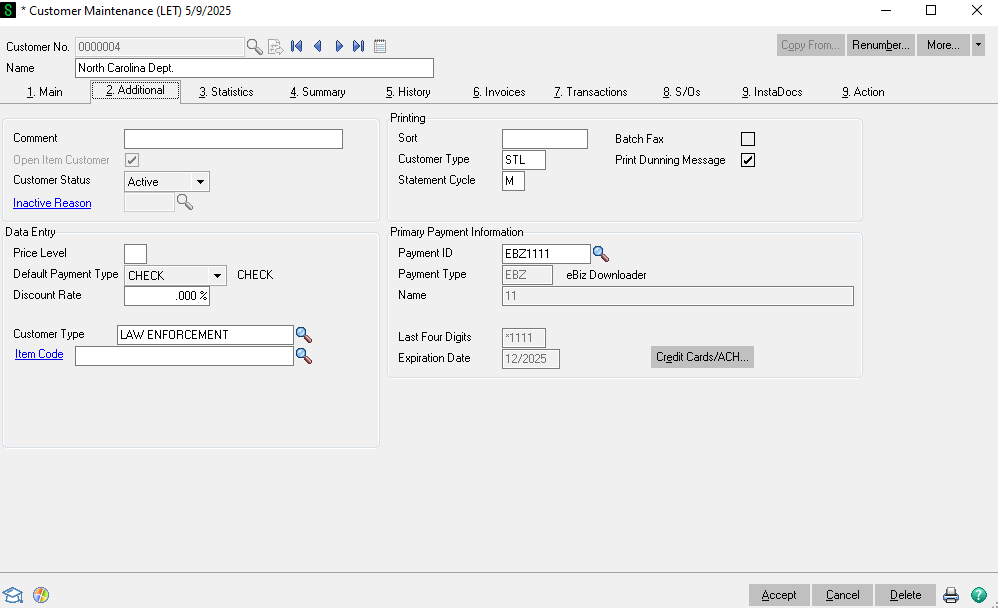
</div><div id="bkmrk-under-the-additional">Under the additional tab the important info is: </div><div id="bkmrk-%E2%80%A2-price-level%C2%A0">• Price level </div><div id="bkmrk-%E2%97%8B-should-be-blank-un">○ Should be blank unless they are a reseller or distributor </div><div id="bkmrk-%E2%97%8B-if-they-are-a-rese">○ If they are a reseller you will see a 1, 2, or 3. That will give the customer special reseller pricing that will automatically pull up on sales orders. </div><div id="bkmrk-%E2%80%A2-customer-type%C2%A0">• Customer type </div><div id="bkmrk-%E2%80%A2-primary-credit-car">• Primary credit card on file</div><div id="bkmrk-%E2%97%8B-note-these-are-enc">○ Note these are encrypted. You can only see the card type and last 4. </div><div id="bkmrk--5">  
</div><div id="bkmrk-statistics%C2%A0">Statistics </div>![image.png](https://wiki.actiontarget.com/uploads/images/gallery/2025-10/scaled-1680-/cVhimage.png)

<div id="bkmrk--7">  
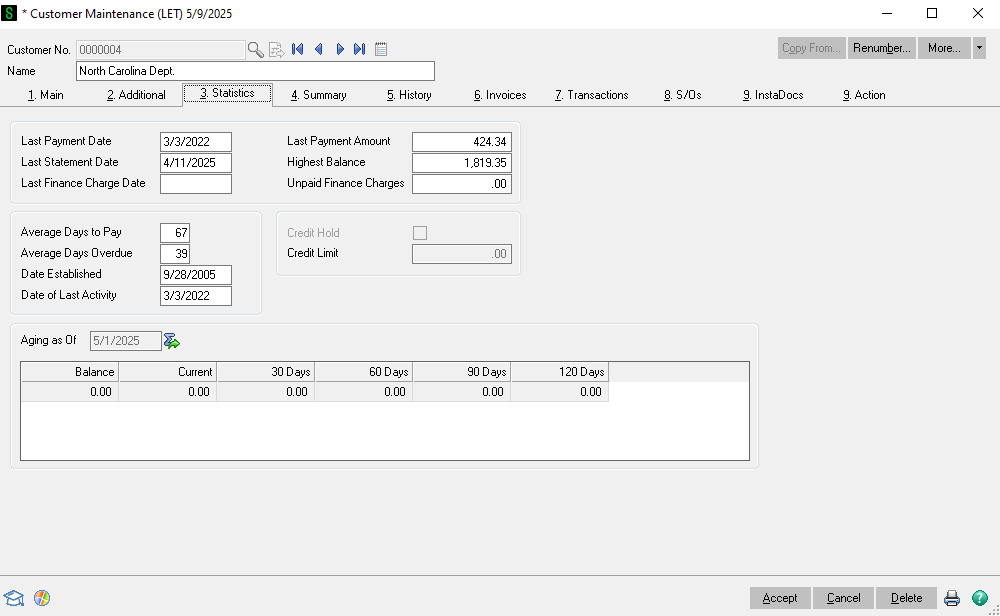
</div><div id="bkmrk-under-the-statistics">Under the statistics you can see: </div><div id="bkmrk--8">  
</div><div id="bkmrk-%E2%80%A2-payment-statistics">• Payment statistics </div><div id="bkmrk-%E2%97%8B-last-payment">○ Last payment</div><div id="bkmrk-%E2%97%8B-last-payment-date">○ Last payment date</div><div id="bkmrk-%E2%97%8B-average-days-to-pa">○ Average days to pay </div><div id="bkmrk-%E2%97%8B-highest-balance%C2%A0">○ Highest balance </div><div id="bkmrk-%E2%80%A2-at-the-bottom-you-">• At the bottom you can see how much the customer owes. If they have a credit like brass credit it will show as a negative balance. They can use that negative balance towards their orders. </div><div id="bkmrk--9">  
</div><div id="bkmrk-history%C2%A0">History </div>![image.png](https://wiki.actiontarget.com/uploads/images/gallery/2025-10/scaled-1680-/F2uimage.png)

<div id="bkmrk--11">  
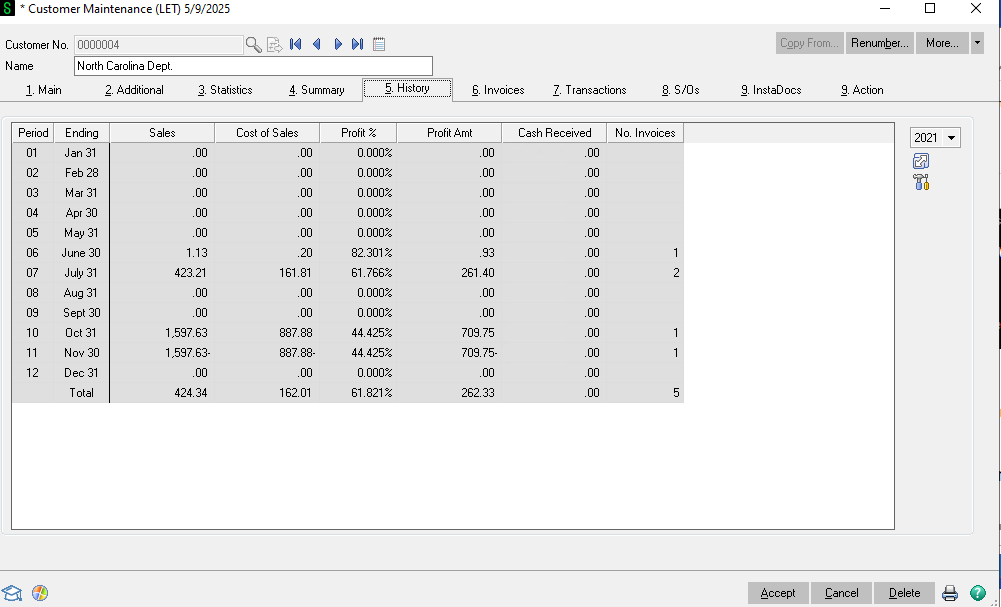
</div><div id="bkmrk-under-history-you-ca">Under History you can see the sales and gross profit by month. This is internal information only. On the right hand side of the screen you can change the year you are viewing. </div><div id="bkmrk--12">  
</div><div id="bkmrk--13">  
</div><div id="bkmrk-invoices%C2%A0">Invoices </div>![image.png](https://wiki.actiontarget.com/uploads/images/gallery/2025-10/scaled-1680-/jVtimage.png)

<div id="bkmrk--15">  
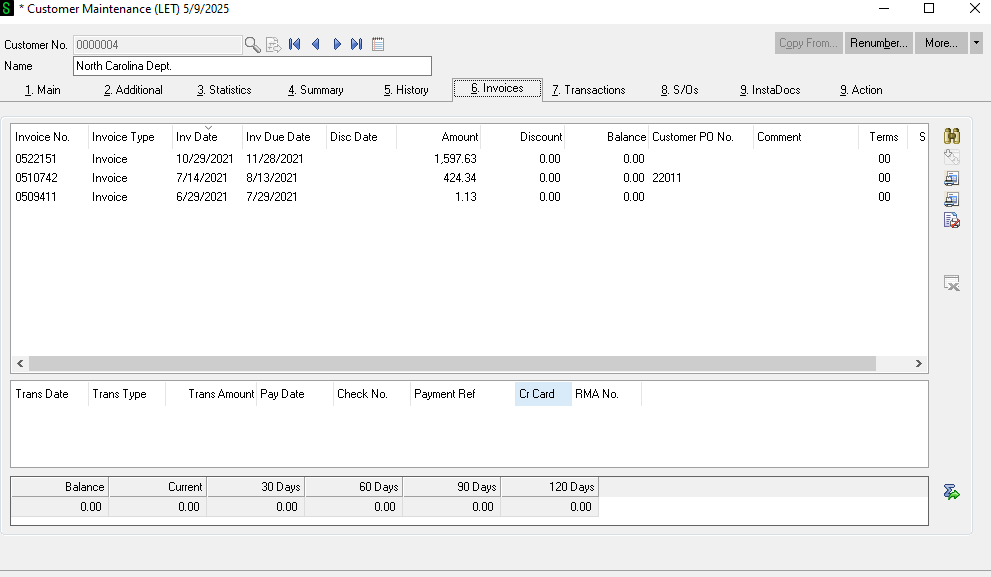
</div><div id="bkmrk-under-invoices-you-c">Under invoices you can see all of their invoices the amount and the balance. If there is a balance that means they still owe on that invoice. If you double click on the invoice you can go into the invoice. </div>![image.png](https://wiki.actiontarget.com/uploads/images/gallery/2025-10/scaled-1680-/b3Cimage.png)
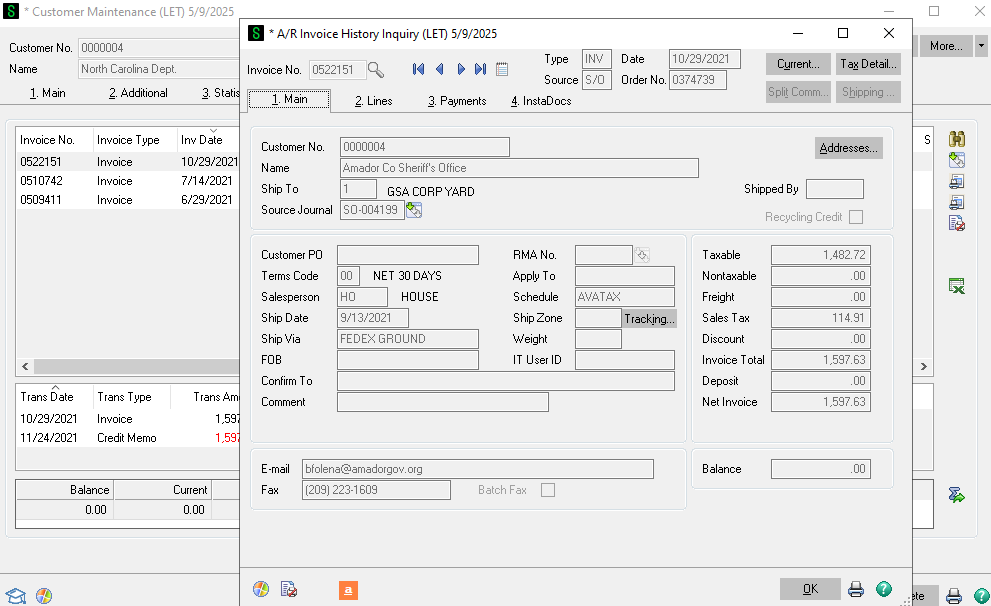
<div id="bkmrk--17"></div><div id="bkmrk-from-here-you-can-vi">From here you can view the invoice and print a copy to a PDF to send to the customer. </div><div id="bkmrk--18">  
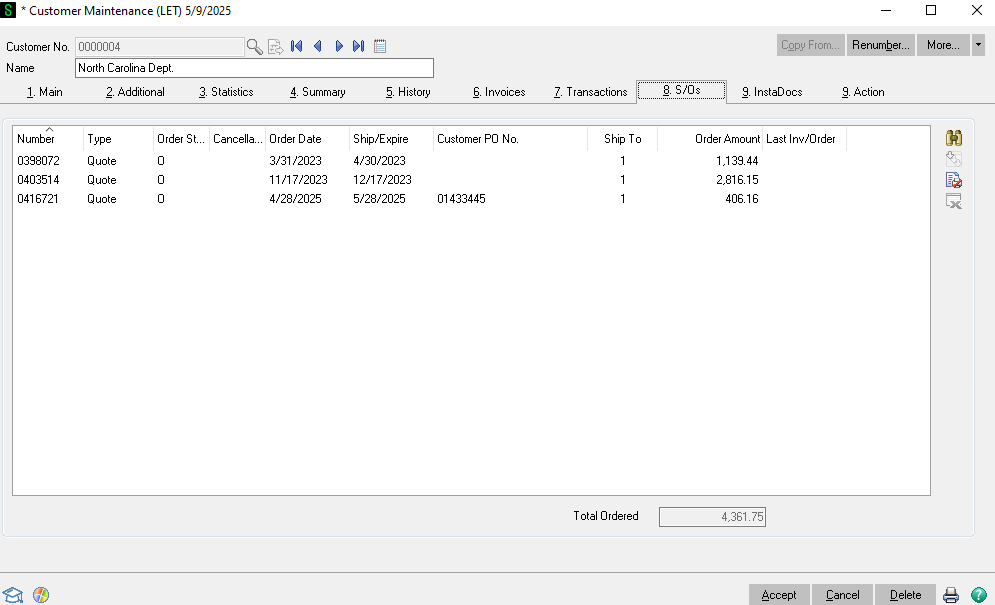
</div><div id="bkmrk-s%2Fo%27s%C2%A0">S/O's </div>![image.png](https://wiki.actiontarget.com/uploads/images/gallery/2025-10/scaled-1680-/Nmnimage.png)

<div id="bkmrk--20">  
</div><div id="bkmrk-s%2Fo%27s-shows-all-of-t">S/O's shows all of the open quotes and orders that have not shipped yet. You can double click onto them to go into them to edit and/or save a copy as a PDF to send to the customer. </div><div id="bkmrk--21">  
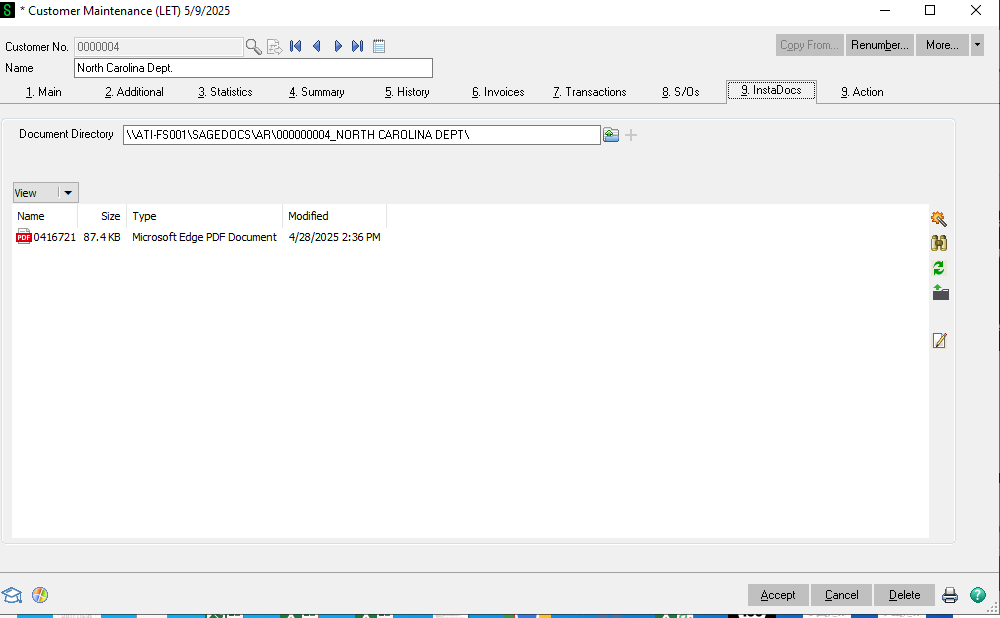
</div><div id="bkmrk-instadoc%27s%C2%A0">Instadoc's </div>![image.png](https://wiki.actiontarget.com/uploads/images/gallery/2025-10/scaled-1680-/aezimage.png)

<div id="bkmrk--23">  
</div><div id="bkmrk--24">  
</div><div id="bkmrk-instadocs-will-have-">Instadocs will have copies of all of the customers purchase orders, packing lists, dealer agreements, etc. This was recently started so there will not be as much as there will be in the future. If you double click on the document you can look at it. </div><div id="bkmrk--25">  
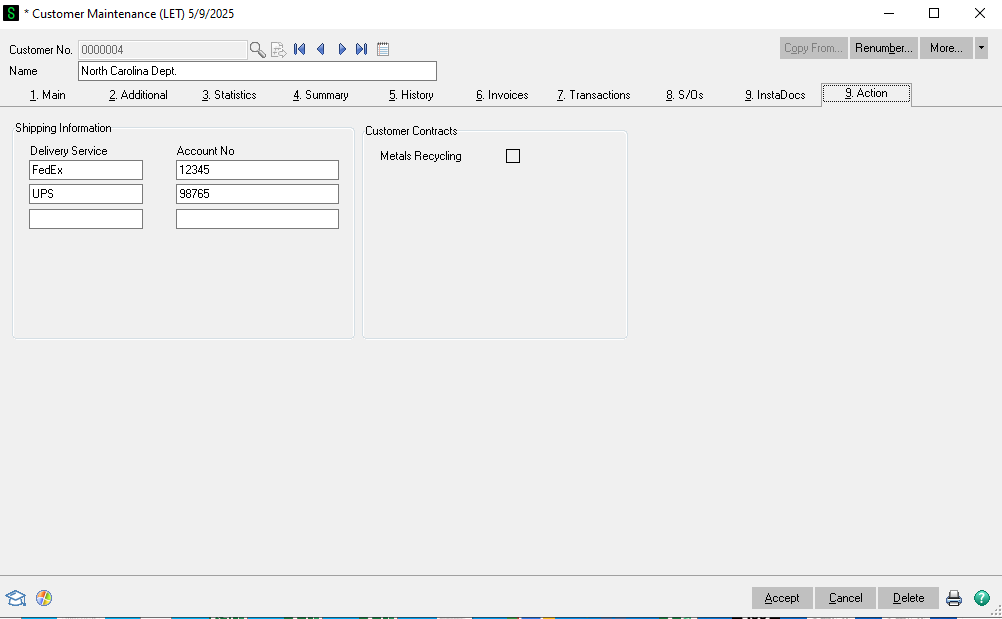
</div><div id="bkmrk-action%C2%A0">Action </div>![image.png](https://wiki.actiontarget.com/uploads/images/gallery/2025-10/scaled-1680-/M6Pimage.png)

<div id="bkmrk--27">  
</div><div id="bkmrk--28">  
</div><div id="bkmrk-the-action-tab-will-">The Action tab will show the customers shipping account. These automatically go onto the customers sales orders. If the shipping method is Customer Choice on the sales order this will be the account the order ships on. </div>