# Starship

These are the pages to follow to setup a user in Starship

1. Create connector
2. Setup Printers
3. Setup Print profile

# Starship Cloud - User Connector Config

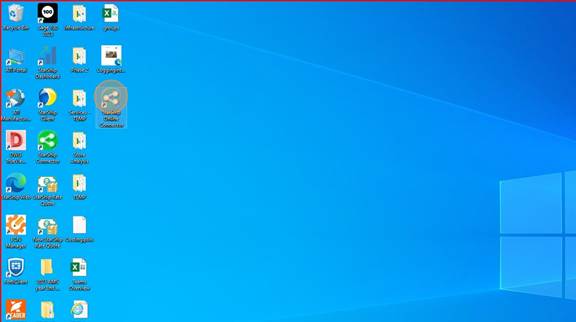
<span style="mso-fareast-font-family: Cambria; mso-fareast-theme-font: minor-latin; mso-bidi-font-family: Cambria; mso-bidi-theme-font: minor-latin;"><span style="mso-list: Ignore;">1.<span style="font: 7.0pt 'Times New Roman';"> </span></span></span>Double-click on "Starship Online Connector"
<span style="mso-no-proof: yes;">![](https://wiki.actiontarget.com/uploads/images/gallery/2025-09/embedded-image-khshlaes.jpeg)</span>

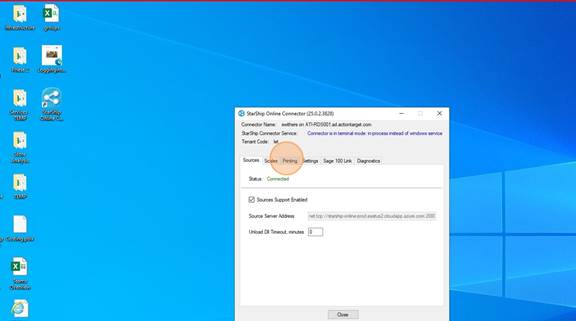
<span style="mso-fareast-font-family: Cambria; mso-fareast-theme-font: minor-latin; mso-bidi-font-family: Cambria; mso-bidi-theme-font: minor-latin;"><span style="mso-list: Ignore;">2.<span style="font: 7.0pt 'Times New Roman';"> </span></span></span>Click on the "Printing" tab

<span style="mso-no-proof: yes;">![](https://wiki.actiontarget.com/uploads/images/gallery/2025-09/embedded-image-x69gr5gv.jpeg)</span>

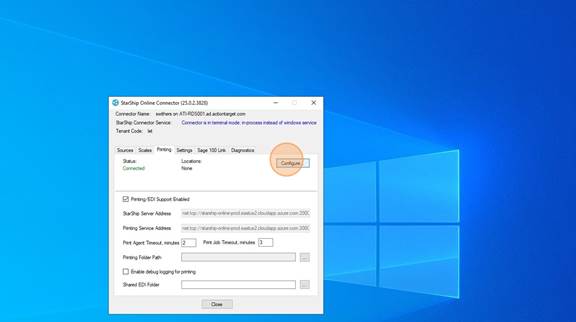
<span style="mso-fareast-font-family: Cambria; mso-fareast-theme-font: minor-latin; mso-bidi-font-family: Cambria; mso-bidi-theme-font: minor-latin;"><span style="mso-list: Ignore;">3.<span style="font: 7.0pt 'Times New Roman';"> </span></span></span>Click on "Configure"

<span style="mso-no-proof: yes;">![](https://wiki.actiontarget.com/uploads/images/gallery/2025-09/embedded-image-nnnxx8qu.jpeg)</span>

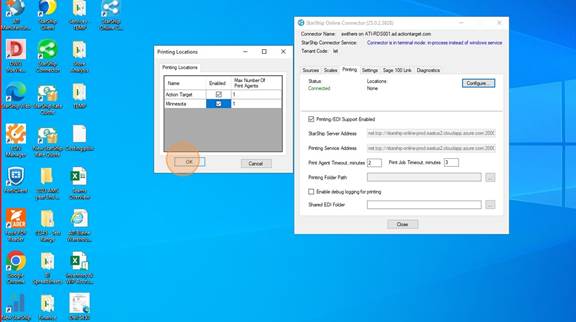
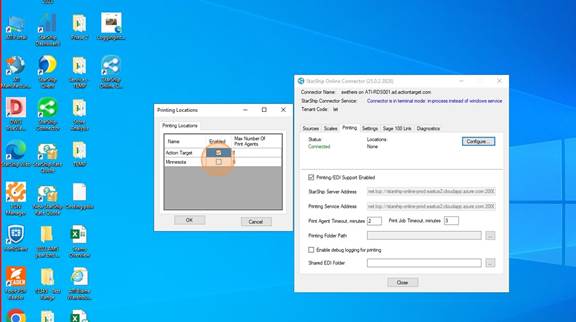
<span style="mso-fareast-font-family: Cambria; mso-fareast-theme-font: minor-latin; mso-bidi-font-family: Cambria; mso-bidi-theme-font: minor-latin;"><span style="mso-list: Ignore;">4.<span style="font: 7.0pt 'Times New Roman';"> </span></span></span>Choose the location (s) where the User will be shipping from. You can choose multiple locations.
<span style="mso-no-proof: yes;">![](https://wiki.actiontarget.com/uploads/images/gallery/2025-09/embedded-image-xqnqnhma.jpeg)</span>

<span style="mso-fareast-font-family: Cambria; mso-fareast-theme-font: minor-latin; mso-bidi-font-family: Cambria; mso-bidi-theme-font: minor-latin;"><span style="mso-list: Ignore;">5.<span style="font: 7.0pt 'Times New Roman';"> </span></span></span>Click "OK"

<span style="mso-no-proof: yes;">![](https://wiki.actiontarget.com/uploads/images/gallery/2025-09/embedded-image-nvgdmkzn.jpeg)</span>

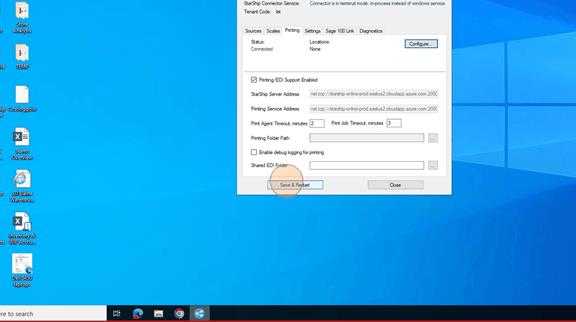
<span style="mso-fareast-font-family: Cambria; mso-fareast-theme-font: minor-latin; mso-bidi-font-family: Cambria; mso-bidi-theme-font: minor-latin;"><span style="mso-list: Ignore;">6.<span style="font: 7.0pt 'Times New Roman';"> </span></span></span>Click on "Save and Restart". Then wait until the Staus shows Connected and the location(s) are in there with Active next to them.
<span style="mso-no-proof: yes;">![](https://wiki.actiontarget.com/uploads/images/gallery/2025-09/embedded-image-sgls4x7b.png)</span>

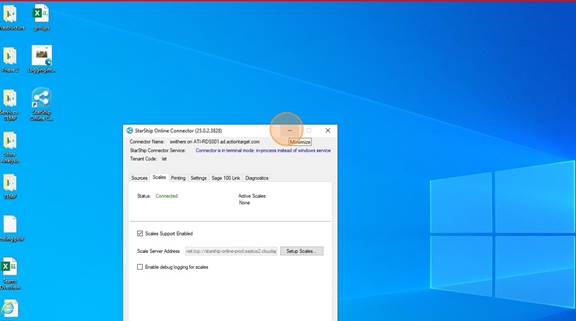
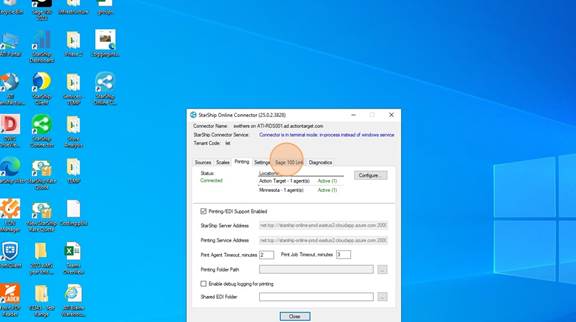
<span style="mso-fareast-font-family: Cambria; mso-fareast-theme-font: minor-latin; mso-bidi-font-family: Cambria; mso-bidi-theme-font: minor-latin;"><span style="mso-list: Ignore;">7.<span style="font: 7.0pt 'Times New Roman';"> </span></span></span>Once it looks like below with the location(s)<span style="mso-spacerun: yes;"> </span>and the Active showing, you are done here. DO NOT CLOSE the Connector. This MUST STAY OPEN while you are using Starship Cloud. It can be minimized.
<span style="mso-no-proof: yes;">![](https://wiki.actiontarget.com/uploads/images/gallery/2025-09/embedded-image-b8uqunkr.jpeg)</span>

<span style="mso-fareast-font-family: Cambria; mso-fareast-theme-font: minor-latin; mso-bidi-font-family: Cambria; mso-bidi-theme-font: minor-latin;"><span style="mso-list: Ignore;">8.<span style="font: 7.0pt 'Times New Roman';"> </span></span></span>MINIMIZE the window

<span style="mso-no-proof: yes;">![](https://wiki.actiontarget.com/uploads/images/gallery/2025-09/embedded-image-9rtnsucj.jpeg)</span>

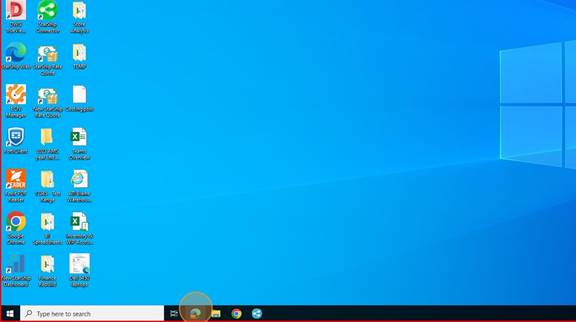
<span style="mso-fareast-font-family: Cambria; mso-fareast-theme-font: minor-latin; mso-bidi-font-family: Cambria; mso-bidi-theme-font: minor-latin;"><span style="mso-list: Ignore;">9.<span style="font: 7.0pt 'Times New Roman';"> </span></span></span>Open a browser

<span style="mso-no-proof: yes;">![](https://wiki.actiontarget.com/uploads/images/gallery/2025-09/embedded-image-sdhtk14p.jpeg)</span>

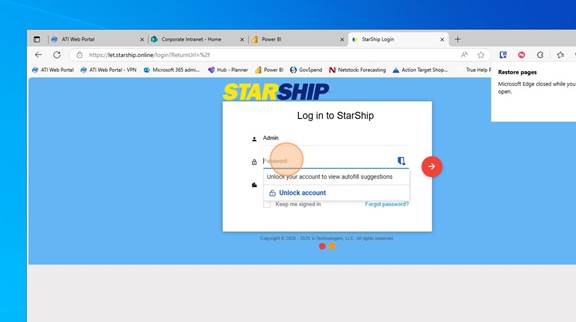
<span style="mso-fareast-font-family: Cambria; mso-fareast-theme-font: minor-latin; mso-bidi-font-family: Cambria; mso-bidi-theme-font: minor-latin;"><span style="mso-list: Ignore;">10.<span style="font: 7.0pt 'Times New Roman';"> </span></span></span>Type in "let.starship.online" and go to the page  
Log in with your Starship Cloud Username and Password. This should have been emailed to you.
<span style="mso-no-proof: yes;">![](https://wiki.actiontarget.com/uploads/images/gallery/2025-09/embedded-image-mhgdh57n.jpeg)</span>

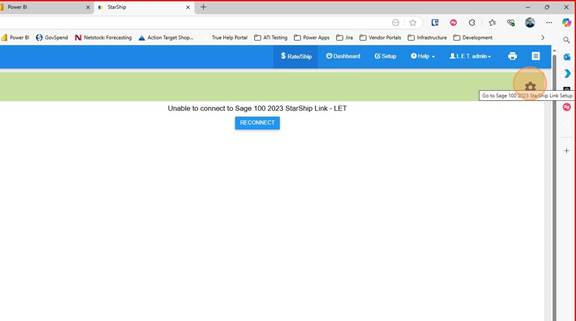
<span style="mso-fareast-font-family: Cambria; mso-fareast-theme-font: minor-latin; mso-bidi-font-family: Cambria; mso-bidi-theme-font: minor-latin;"><span style="mso-list: Ignore;">11.<span style="font: 7.0pt 'Times New Roman';"> </span></span></span>Click on the Gear icon

<span style="mso-no-proof: yes;">![](https://wiki.actiontarget.com/uploads/images/gallery/2025-09/embedded-image-ypm7vwdi.jpeg)</span>

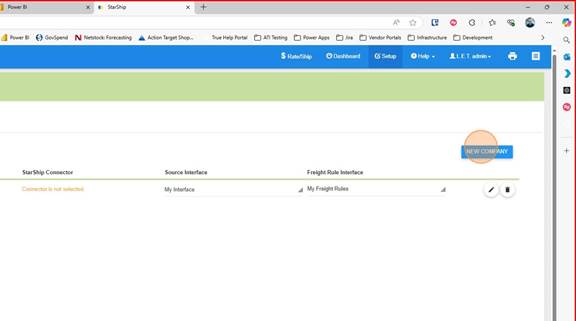
<span style="mso-fareast-font-family: Cambria; mso-fareast-theme-font: minor-latin; mso-bidi-font-family: Cambria; mso-bidi-theme-font: minor-latin;"><span style="mso-list: Ignore;">12.<span style="font: 7.0pt 'Times New Roman';"> </span></span></span>Click "New Company"

<span style="mso-no-proof: yes;">![](https://wiki.actiontarget.com/uploads/images/gallery/2025-09/embedded-image-bujtk5sm.jpeg)</span>

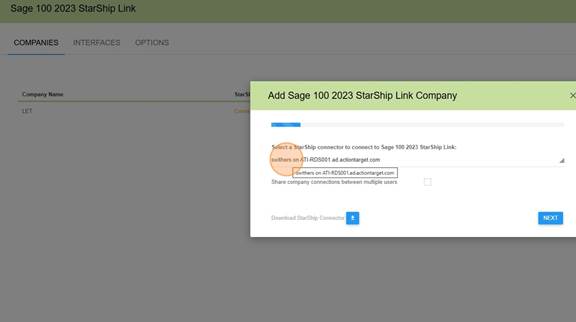
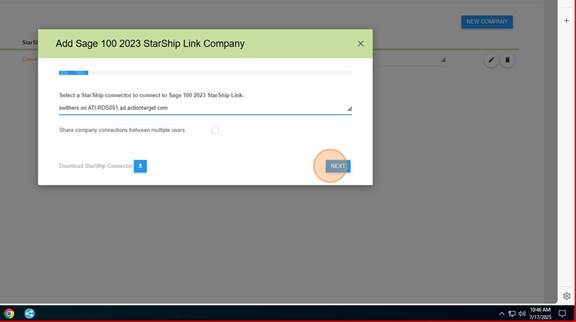
<span style="mso-fareast-font-family: Cambria; mso-fareast-theme-font: minor-latin; mso-bidi-font-family: Cambria; mso-bidi-theme-font: minor-latin;"><span style="mso-list: Ignore;">13.<span style="font: 7.0pt 'Times New Roman';"> </span></span></span>Choose the connector you just created.

<span style="mso-no-proof: yes;">![](https://wiki.actiontarget.com/uploads/images/gallery/2025-09/embedded-image-diiu7ray.jpeg)</span>

<span style="mso-fareast-font-family: Cambria; mso-fareast-theme-font: minor-latin; mso-bidi-font-family: Cambria; mso-bidi-theme-font: minor-latin;"><span style="mso-list: Ignore;">14.<span style="font: 7.0pt 'Times New Roman';"> </span></span></span>Click "Next"

<span style="mso-no-proof: yes;">![](https://wiki.actiontarget.com/uploads/images/gallery/2025-09/embedded-image-ud1ayj6z.jpeg)</span>

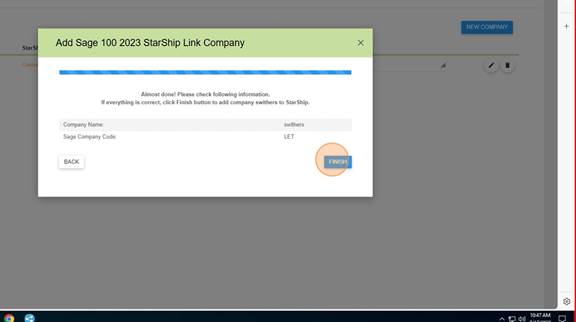
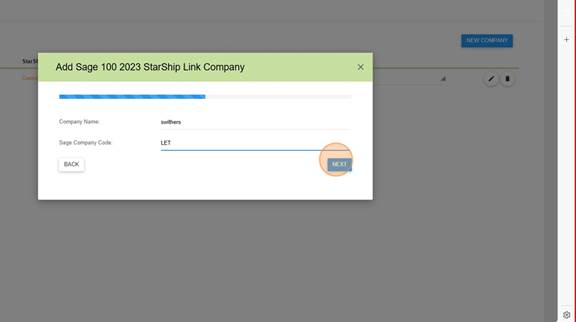
<span style="mso-fareast-font-family: Cambria; mso-fareast-theme-font: minor-latin; mso-bidi-font-family: Cambria; mso-bidi-theme-font: minor-latin;"><span style="mso-list: Ignore;">15.<span style="font: 7.0pt 'Times New Roman';"> </span></span></span>For Company Name - Your Username (the example below is swithers)  
For Sage Company Code - LET  
Click on "Next"
<span style="mso-no-proof: yes;">![](https://wiki.actiontarget.com/uploads/images/gallery/2025-09/embedded-image-r4ayvzwr.jpeg)</span>

<span style="mso-fareast-font-family: Cambria; mso-fareast-theme-font: minor-latin; mso-bidi-font-family: Cambria; mso-bidi-theme-font: minor-latin;"><span style="mso-list: Ignore;">16.<span style="font: 7.0pt 'Times New Roman';"> </span></span></span>Click "Finish"

<span style="mso-no-proof: yes;">![](https://wiki.actiontarget.com/uploads/images/gallery/2025-09/embedded-image-vpv8aqie.jpeg)</span>

# Starship - User Setup Printers

<span style="mso-fareast-font-family: Cambria; mso-fareast-theme-font: minor-latin; mso-bidi-font-family: Cambria; mso-bidi-theme-font: minor-latin;"><span style="mso-list: Ignore;">Follow these steps to setup the Printers for the user. Typically 2 printers are needed: </span></span>

- <span style="mso-fareast-font-family: Cambria; mso-fareast-theme-font: minor-latin; mso-bidi-font-family: Cambria; mso-bidi-theme-font: minor-latin;"><span style="mso-list: Ignore;">Laser Printer</span></span>
- <span style="mso-fareast-font-family: Cambria; mso-fareast-theme-font: minor-latin; mso-bidi-font-family: Cambria; mso-bidi-theme-font: minor-latin;"><span style="mso-list: Ignore;">Lable Printer</span></span>

##### <span style="mso-fareast-font-family: Cambria; mso-fareast-theme-font: minor-latin; mso-bidi-font-family: Cambria; mso-bidi-theme-font: minor-latin;"><span style="mso-list: Ignore;">**The Starship Online Connector on your desktop must be setup and running on your desktop before you can do any of these steps.** </span></span>

[![image.png](https://wiki.actiontarget.com/uploads/images/gallery/2025-09/scaled-1680-/GQXimage.png)](https://wiki.actiontarget.com/uploads/images/gallery/2025-09/GQXimage.png)

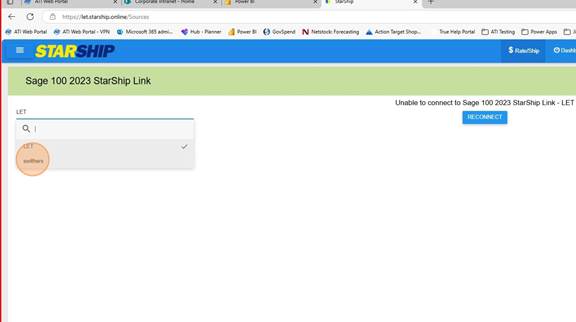
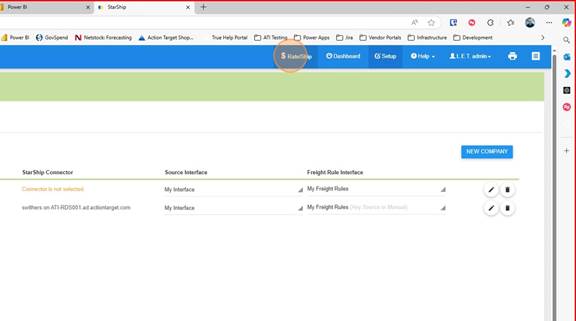
1\. Click on "Rate/Ship"
<span style="mso-no-proof: yes;">![](https://wiki.actiontarget.com/uploads/images/gallery/2025-09/embedded-image-cakxs8kl.jpeg)</span>

<span style="mso-fareast-font-family: Cambria; mso-fareast-theme-font: minor-latin; mso-bidi-font-family: Cambria; mso-bidi-theme-font: minor-latin;"><span style="mso-list: Ignore;">2.<span style="font: 7.0pt 'Times New Roman';"> </span></span></span>Choose the user connector

<span style="mso-no-proof: yes;">![](https://wiki.actiontarget.com/uploads/images/gallery/2025-09/embedded-image-uzot9idx.jpeg)</span>

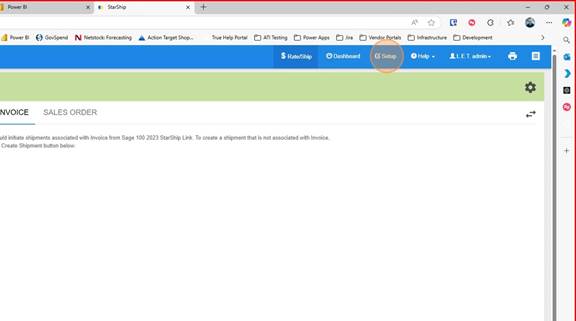
<span style="mso-fareast-font-family: Cambria; mso-fareast-theme-font: minor-latin; mso-bidi-font-family: Cambria; mso-bidi-theme-font: minor-latin;"><span style="mso-list: Ignore;">3.<span style="font: 7.0pt 'Times New Roman';"> </span></span></span>Click on Setup

<span style="mso-no-proof: yes;">![](https://wiki.actiontarget.com/uploads/images/gallery/2025-09/embedded-image-z14yqxjh.jpeg)</span>

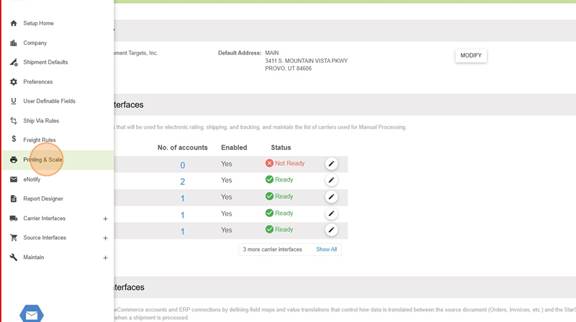
<span style="mso-fareast-font-family: Cambria; mso-fareast-theme-font: minor-latin; mso-bidi-font-family: Cambria; mso-bidi-theme-font: minor-latin;"><span style="mso-list: Ignore;">4.<span style="font: 7.0pt 'Times New Roman';"> </span></span></span>Click on "Printing and Scale"

<span style="mso-no-proof: yes;">![](https://wiki.actiontarget.com/uploads/images/gallery/2025-09/embedded-image-byzfdlot.jpeg)</span>

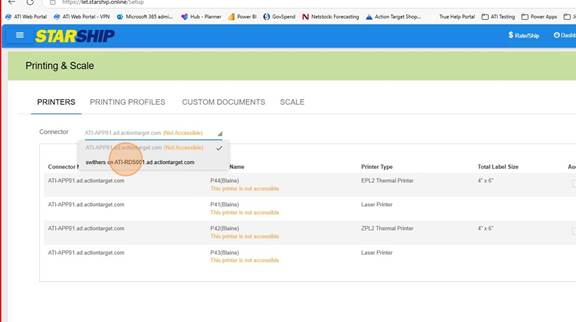
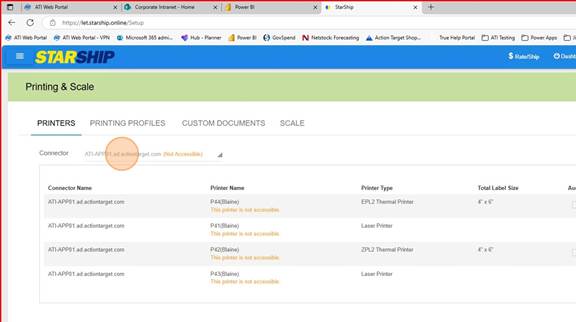
<span style="mso-fareast-font-family: Cambria; mso-fareast-theme-font: minor-latin; mso-bidi-font-family: Cambria; mso-bidi-theme-font: minor-latin;"><span style="mso-list: Ignore;">5.<span style="font: 7.0pt 'Times New Roman';"> </span></span></span>Under Printers choose the Connector you want to add printers to
<span style="mso-no-proof: yes;">![](https://wiki.actiontarget.com/uploads/images/gallery/2025-09/embedded-image-pgzzqtn1.jpeg)</span><span style="mso-no-proof: yes;">![](https://wiki.actiontarget.com/uploads/images/gallery/2025-09/embedded-image-bbbld6z6.jpeg)</span>

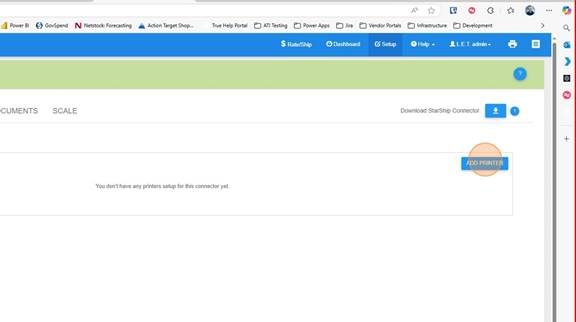
<span style="mso-fareast-font-family: Cambria; mso-fareast-theme-font: minor-latin; mso-bidi-font-family: Cambria; mso-bidi-theme-font: minor-latin;"><span style="mso-list: Ignore;">7.<span style="font: 7.0pt 'Times New Roman';"> </span></span></span>Click on "Add Printer"

<span style="mso-no-proof: yes;">![](https://wiki.actiontarget.com/uploads/images/gallery/2025-09/embedded-image-vdq4amyq.jpeg)</span>

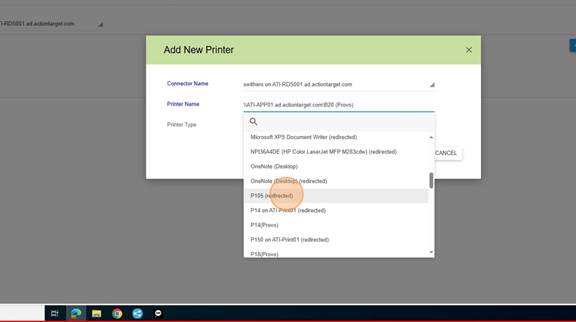
<span style="mso-fareast-font-family: Cambria; mso-fareast-theme-font: minor-latin; mso-bidi-font-family: Cambria; mso-bidi-theme-font: minor-latin;"><span style="mso-list: Ignore;">8.<span style="font: 7.0pt 'Times New Roman';"> </span></span></span>Select the Printer to add

<span style="mso-no-proof: yes;">![](https://wiki.actiontarget.com/uploads/images/gallery/2025-09/embedded-image-4w86ek9m.jpeg)</span><span style="mso-no-proof: yes;">![](https://wiki.actiontarget.com/uploads/images/gallery/2025-09/embedded-image-azywa9wn.jpeg)</span>

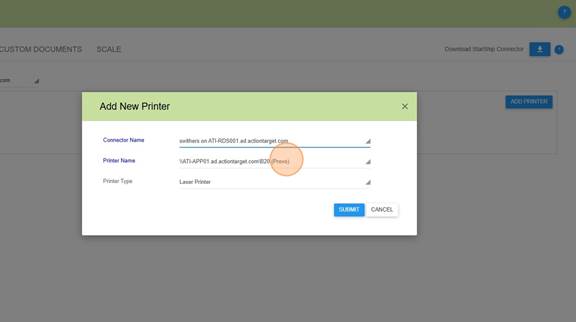
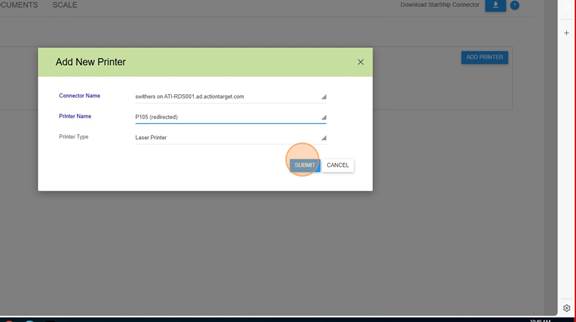
<span style="mso-fareast-font-family: Cambria; mso-fareast-theme-font: minor-latin; mso-bidi-font-family: Cambria; mso-bidi-theme-font: minor-latin;"><span style="mso-list: Ignore;">10.<span style="font: 7.0pt 'Times New Roman';"> </span></span></span>Click Submit

<span style="mso-no-proof: yes;">![](https://wiki.actiontarget.com/uploads/images/gallery/2025-09/embedded-image-knnxr5gh.jpeg)</span>

<span style="mso-fareast-font-family: Cambria; mso-fareast-theme-font: minor-latin; mso-bidi-font-family: Cambria; mso-bidi-theme-font: minor-latin;"><span style="mso-list: Ignore;">11.<span style="font: 7.0pt 'Times New Roman';"> </span></span></span>Continue until all of the Printers the user will be using are added.

# Starship Cloud  - User Print Profile

##### <span style="mso-fareast-font-family: Cambria; mso-fareast-theme-font: minor-latin; mso-bidi-font-family: Cambria; mso-bidi-theme-font: minor-latin;"><span style="mso-list: Ignore;">**The Starship Online Connector on your desktop must be setup and running on your desktop before you can do any of these steps.** </span></span>

[![image.png](https://wiki.actiontarget.com/uploads/images/gallery/2025-09/scaled-1680-/GQXimage.png)](https://wiki.actiontarget.com/uploads/images/gallery/2025-09/GQXimage.png)

Printing Profiles are used to print the correct labels and paperwork for each of the different Shipping companies that we use. In Blaine, there are 2 main profiles, one for Truck lines and one for Parcel shipments, although each station can ship both.

For purposes today, we are going to Copy the profile

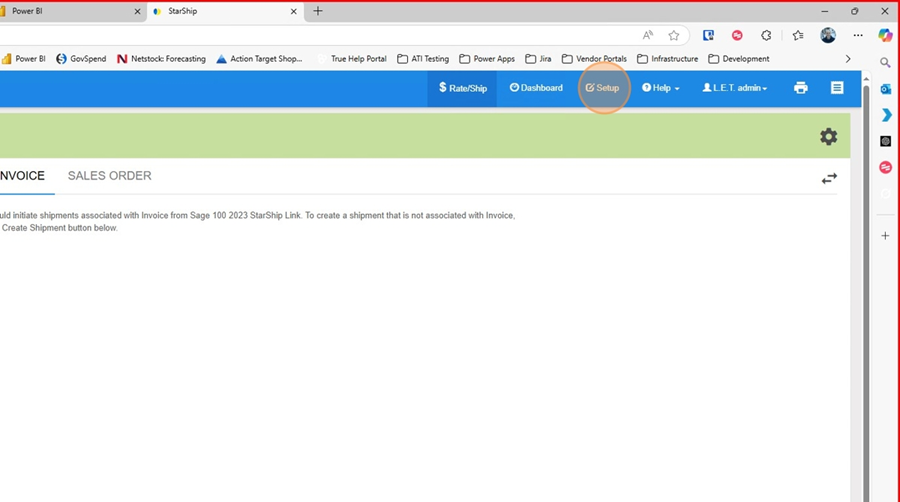
1. In Starship Cloud click on Setup

[![image.png](https://wiki.actiontarget.com/uploads/images/gallery/2025-09/scaled-1680-/7Seimage.png)](https://wiki.actiontarget.com/uploads/images/gallery/2025-09/7Seimage.png)
2\. Click on "Printing and Scale"

[![image.png](https://wiki.actiontarget.com/uploads/images/gallery/2025-09/scaled-1680-/6NAimage.png)](https://wiki.actiontarget.com/uploads/images/gallery/2025-09/6NAimage.png)
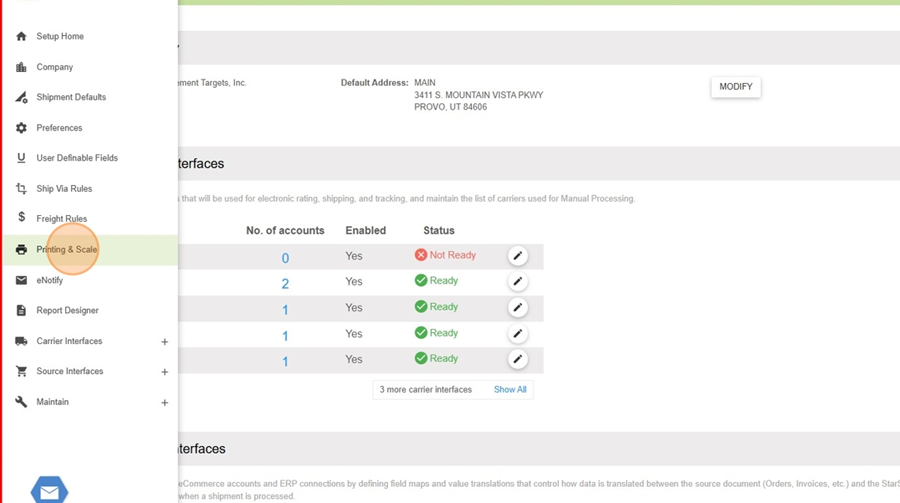
3\. Click on "Printing Profiles"

[![image.png](https://wiki.actiontarget.com/uploads/images/gallery/2025-09/scaled-1680-/N9Iimage.png)](https://wiki.actiontarget.com/uploads/images/gallery/2025-09/N9Iimage.png)
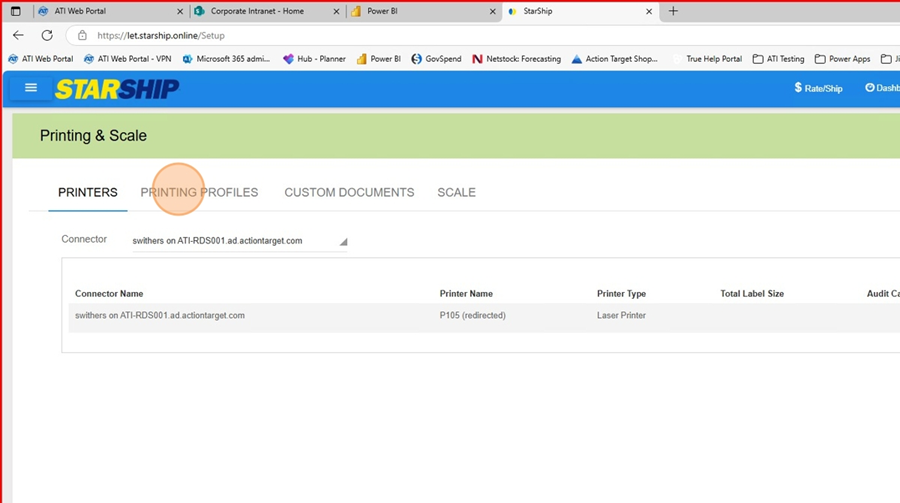
4\. Click on the Printing Profile you want to copy and then click on "Copy"

[![image.png](https://wiki.actiontarget.com/uploads/images/gallery/2025-09/scaled-1680-/us1image.png)](https://wiki.actiontarget.com/uploads/images/gallery/2025-09/us1image.png)
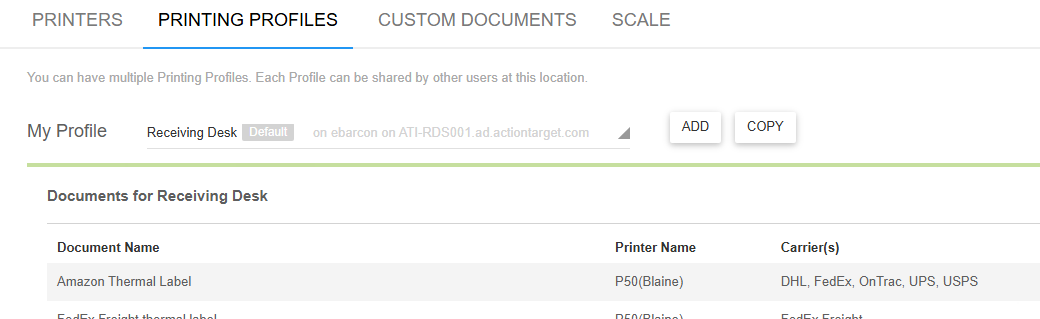
5\. Choose the connector that you want to create the profile for

[![image.png](https://wiki.actiontarget.com/uploads/images/gallery/2025-09/scaled-1680-/QJuimage.png)](https://wiki.actiontarget.com/uploads/images/gallery/2025-09/QJuimage.png)
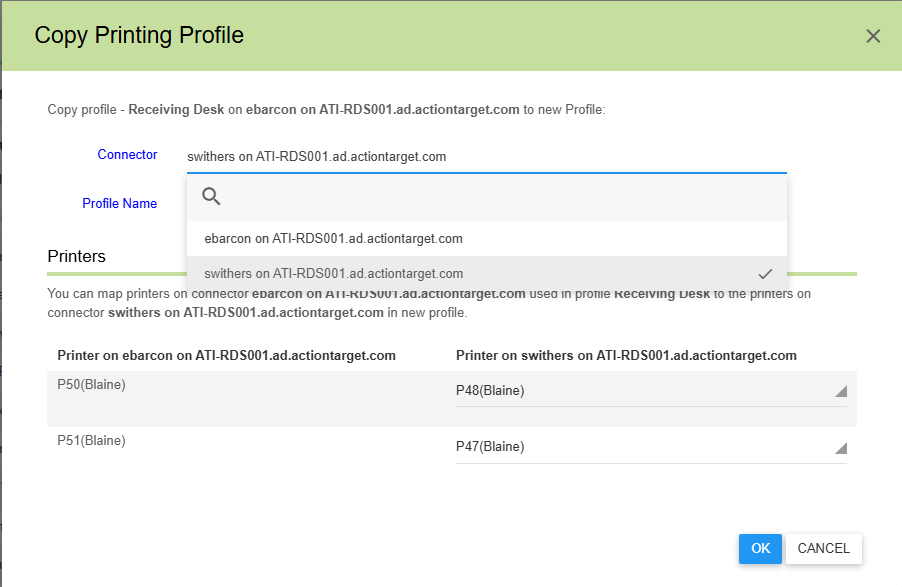
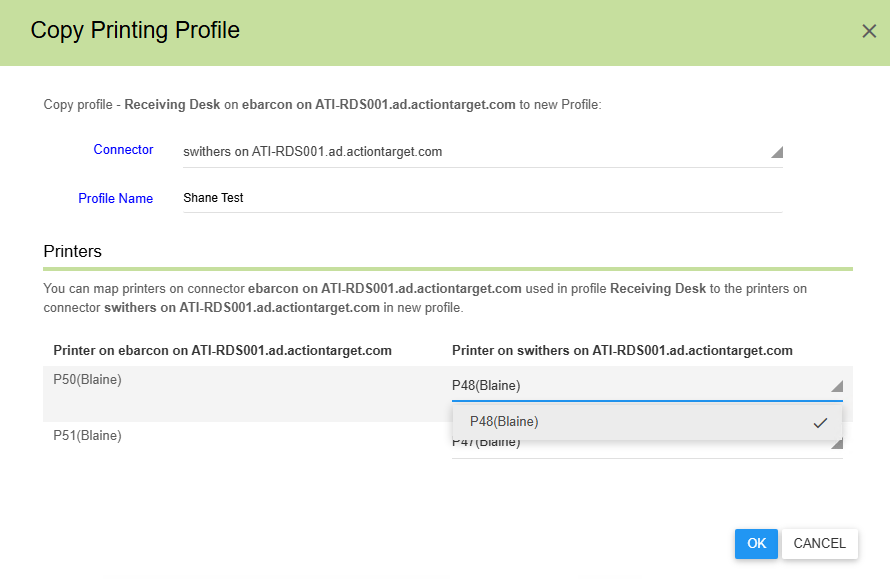
6\. Name the Profile and choose the printer you want to copy of the user.

[![image.png](https://wiki.actiontarget.com/uploads/images/gallery/2025-09/scaled-1680-/LkUimage.png)](https://wiki.actiontarget.com/uploads/images/gallery/2025-09/LkUimage.png)
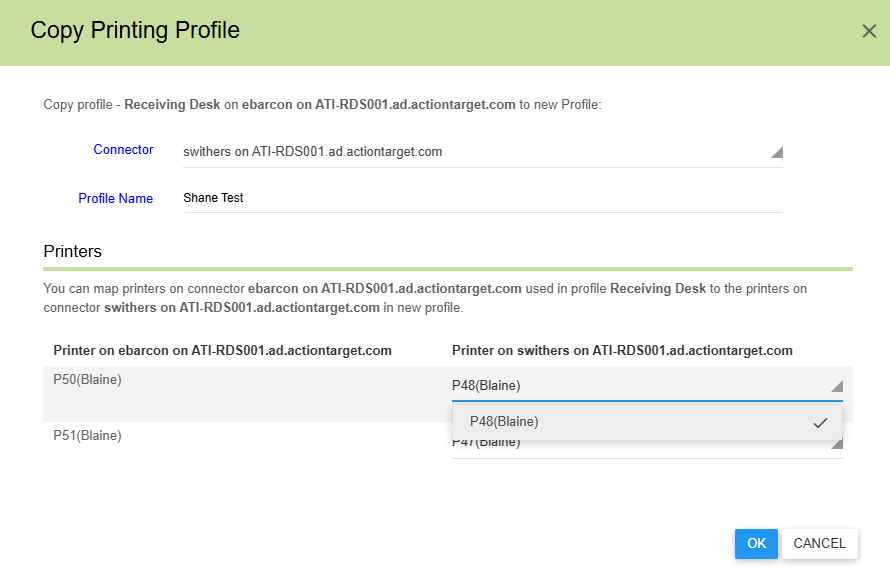
7\. Click OK and then you are done.

[![image.png](https://wiki.actiontarget.com/uploads/images/gallery/2025-09/scaled-1680-/V4Jimage.png)](https://wiki.actiontarget.com/uploads/images/gallery/2025-09/V4Jimage.png)