# Starship - User Setup Printers

<span style="mso-fareast-font-family: Cambria; mso-fareast-theme-font: minor-latin; mso-bidi-font-family: Cambria; mso-bidi-theme-font: minor-latin;"><span style="mso-list: Ignore;">Follow these steps to setup the Printers for the user. Typically 2 printers are needed: </span></span>

- <span style="mso-fareast-font-family: Cambria; mso-fareast-theme-font: minor-latin; mso-bidi-font-family: Cambria; mso-bidi-theme-font: minor-latin;"><span style="mso-list: Ignore;">Laser Printer</span></span>
- <span style="mso-fareast-font-family: Cambria; mso-fareast-theme-font: minor-latin; mso-bidi-font-family: Cambria; mso-bidi-theme-font: minor-latin;"><span style="mso-list: Ignore;">Lable Printer</span></span>

##### <span style="mso-fareast-font-family: Cambria; mso-fareast-theme-font: minor-latin; mso-bidi-font-family: Cambria; mso-bidi-theme-font: minor-latin;"><span style="mso-list: Ignore;">**The Starship Online Connector on your desktop must be setup and running on your desktop before you can do any of these steps.** </span></span>

[![image.png](https://wiki.actiontarget.com/uploads/images/gallery/2025-09/scaled-1680-/GQXimage.png)](https://wiki.actiontarget.com/uploads/images/gallery/2025-09/GQXimage.png)

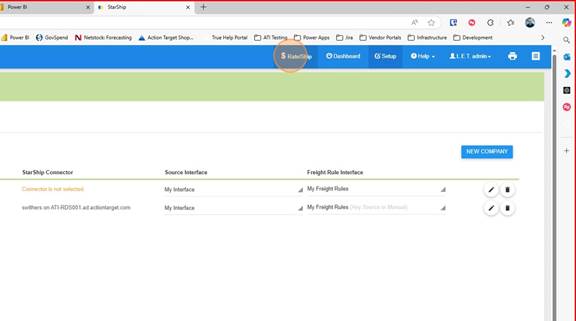
1\. Click on "Rate/Ship"
<span style="mso-no-proof: yes;">![](https://wiki.actiontarget.com/uploads/images/gallery/2025-09/embedded-image-cakxs8kl.jpeg)</span>

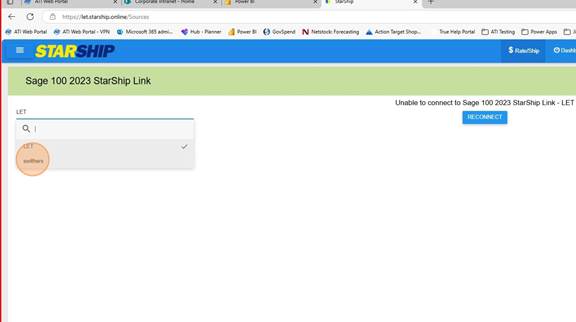
<span style="mso-fareast-font-family: Cambria; mso-fareast-theme-font: minor-latin; mso-bidi-font-family: Cambria; mso-bidi-theme-font: minor-latin;"><span style="mso-list: Ignore;">2.<span style="font: 7.0pt 'Times New Roman';"> </span></span></span>Choose the user connector

<span style="mso-no-proof: yes;">![](https://wiki.actiontarget.com/uploads/images/gallery/2025-09/embedded-image-uzot9idx.jpeg)</span>

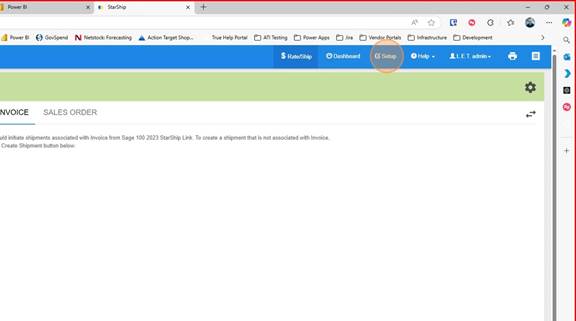
<span style="mso-fareast-font-family: Cambria; mso-fareast-theme-font: minor-latin; mso-bidi-font-family: Cambria; mso-bidi-theme-font: minor-latin;"><span style="mso-list: Ignore;">3.<span style="font: 7.0pt 'Times New Roman';"> </span></span></span>Click on Setup

<span style="mso-no-proof: yes;">![](https://wiki.actiontarget.com/uploads/images/gallery/2025-09/embedded-image-z14yqxjh.jpeg)</span>

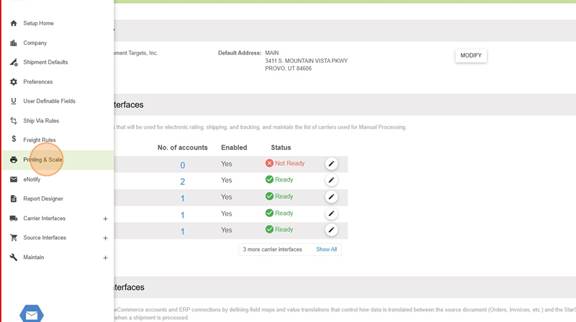
<span style="mso-fareast-font-family: Cambria; mso-fareast-theme-font: minor-latin; mso-bidi-font-family: Cambria; mso-bidi-theme-font: minor-latin;"><span style="mso-list: Ignore;">4.<span style="font: 7.0pt 'Times New Roman';"> </span></span></span>Click on "Printing and Scale"

<span style="mso-no-proof: yes;">![](https://wiki.actiontarget.com/uploads/images/gallery/2025-09/embedded-image-byzfdlot.jpeg)</span>

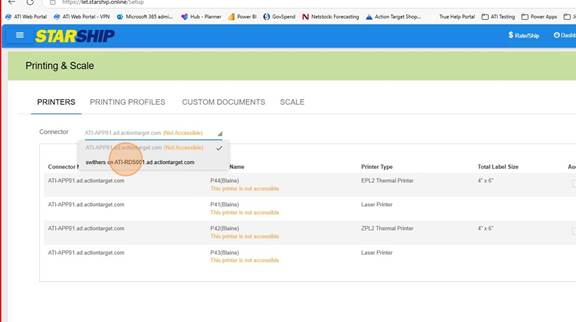
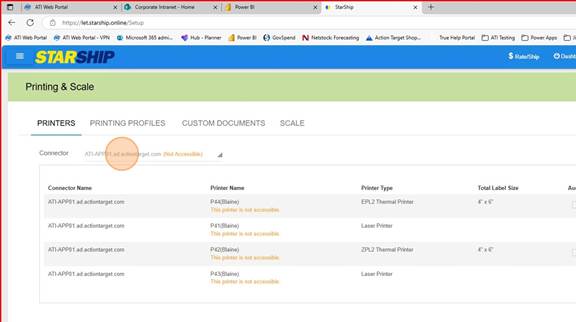
<span style="mso-fareast-font-family: Cambria; mso-fareast-theme-font: minor-latin; mso-bidi-font-family: Cambria; mso-bidi-theme-font: minor-latin;"><span style="mso-list: Ignore;">5.<span style="font: 7.0pt 'Times New Roman';"> </span></span></span>Under Printers choose the Connector you want to add printers to
<span style="mso-no-proof: yes;">![](https://wiki.actiontarget.com/uploads/images/gallery/2025-09/embedded-image-pgzzqtn1.jpeg)</span><span style="mso-no-proof: yes;">![](https://wiki.actiontarget.com/uploads/images/gallery/2025-09/embedded-image-bbbld6z6.jpeg)</span>

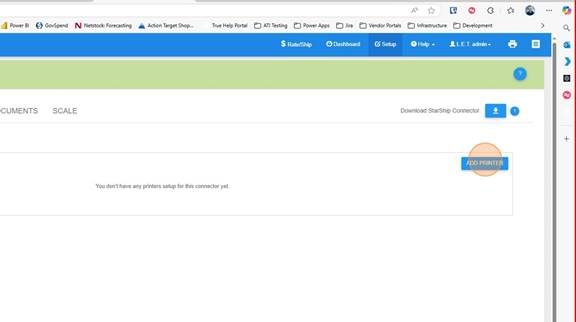
<span style="mso-fareast-font-family: Cambria; mso-fareast-theme-font: minor-latin; mso-bidi-font-family: Cambria; mso-bidi-theme-font: minor-latin;"><span style="mso-list: Ignore;">7.<span style="font: 7.0pt 'Times New Roman';"> </span></span></span>Click on "Add Printer"

<span style="mso-no-proof: yes;">![](https://wiki.actiontarget.com/uploads/images/gallery/2025-09/embedded-image-vdq4amyq.jpeg)</span>

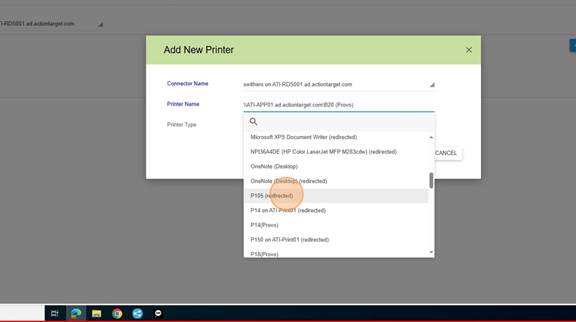
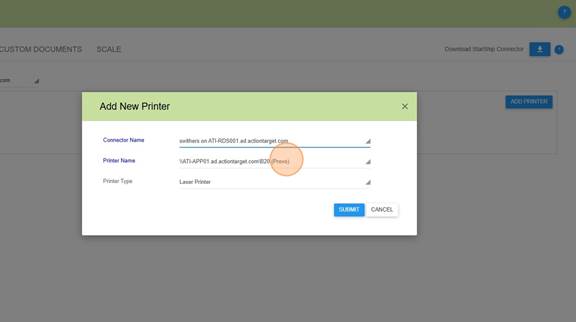
<span style="mso-fareast-font-family: Cambria; mso-fareast-theme-font: minor-latin; mso-bidi-font-family: Cambria; mso-bidi-theme-font: minor-latin;"><span style="mso-list: Ignore;">8.<span style="font: 7.0pt 'Times New Roman';"> </span></span></span>Select the Printer to add

<span style="mso-no-proof: yes;">![](https://wiki.actiontarget.com/uploads/images/gallery/2025-09/embedded-image-4w86ek9m.jpeg)</span><span style="mso-no-proof: yes;">![](https://wiki.actiontarget.com/uploads/images/gallery/2025-09/embedded-image-azywa9wn.jpeg)</span>

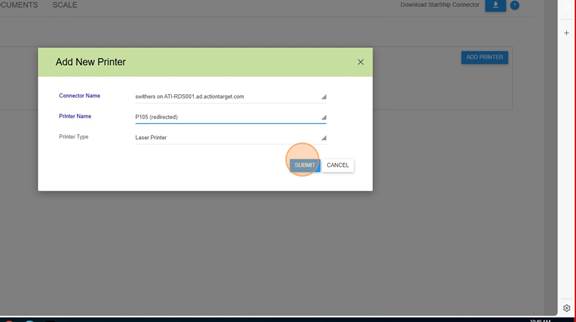
<span style="mso-fareast-font-family: Cambria; mso-fareast-theme-font: minor-latin; mso-bidi-font-family: Cambria; mso-bidi-theme-font: minor-latin;"><span style="mso-list: Ignore;">10.<span style="font: 7.0pt 'Times New Roman';"> </span></span></span>Click Submit

<span style="mso-no-proof: yes;">![](https://wiki.actiontarget.com/uploads/images/gallery/2025-09/embedded-image-knnxr5gh.jpeg)</span>

<span style="mso-fareast-font-family: Cambria; mso-fareast-theme-font: minor-latin; mso-bidi-font-family: Cambria; mso-bidi-theme-font: minor-latin;"><span style="mso-list: Ignore;">11.<span style="font: 7.0pt 'Times New Roman';"> </span></span></span>Continue until all of the Printers the user will be using are added.