
Tax Exemption
Login into Avalara
Tax compliance software and automated solutions - Avalara

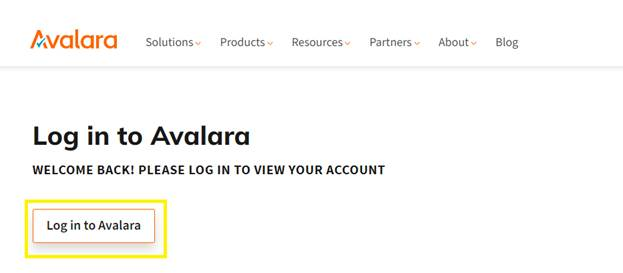
- Once you have logged in you will need to navigate to the exemptions tab

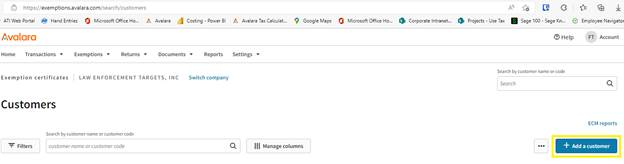
- From this exemption window you can either review previous added customers and their exemptions or add a new customer and their exemption.
- To add a new customer, click on the blue “Add a customer” box.
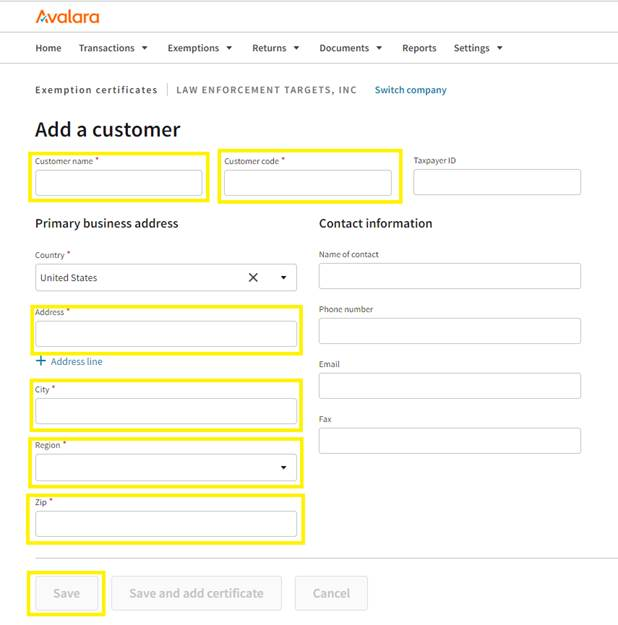
- When adding a customer copy and paste the information from Sage directly into Avalara’s website.
- You will need to have the Customers name
- Customer Code this will be the customer number in sage. For this to work properly you need to add two zeros to the front of the 7-digit customer number in sage. The CODE in Avalara needs to be at least (9) nine digits long.
- You will also need the address. All data can be copied and pasted except for region/state.
- Once all the required fields have been entered you will be able to click save to add the customer to Avalara.
-
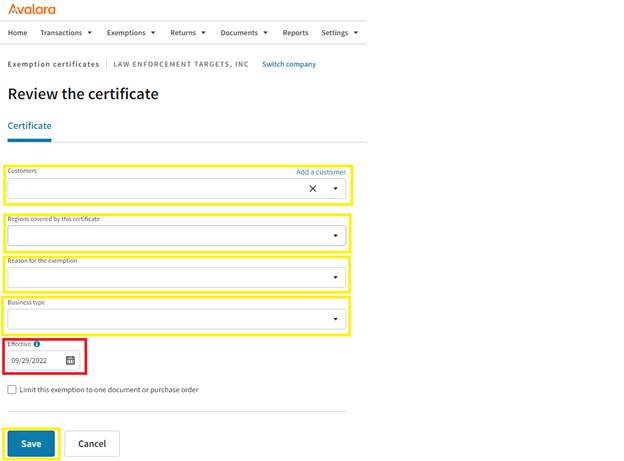
The Customer should have auto populated in this field since we clicked on save and add exemption, please verify you are adding an exemption to the correct customer.
-
You will need to verify which state exemption you have before selecting a region for the exemption. Open and look at the exemption while entering the data.
-
Once you have entered the Region the field where you can save the exemption number will appear towards the bottom of the screen.
-
The reason for the customer being exempt could be listed on the exemption. If the reason is not stated, please reach out to someone in accounting to help determine what is the best selection.
-
You may also use educational, state government or federal government
-
Business type is also a required field. It often, but not always will match your exemption reason.
-
The effective date should be todays date if you are placing an order for a customer and have the exemption while placing the order. If they send it afterwards then you will need to select a date that is on or before the date of the order so that the order will be tax free.
-
Click the save button to complete your entry