
Receiving Inventory in Sage
📘 Purpose
This guide walks through the process of receiving inventoryforin Sage.
🛠️ Prerequisites
- Have Sage opened on the Home page
🔁 Step-by-Step Instructions
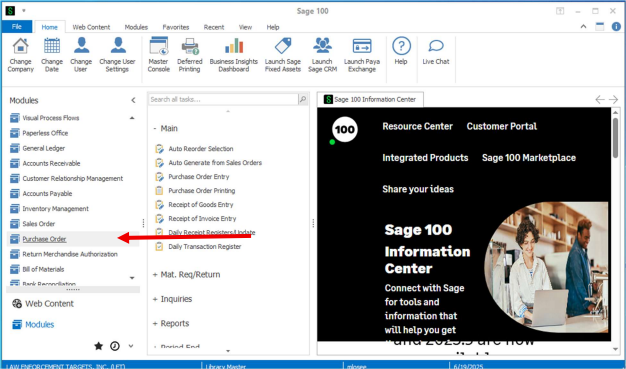
1. Click on the "Purchase Order" Module in the Left Column
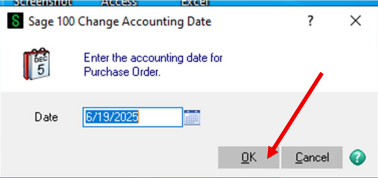
2. Ensure the date is correct and click "OK" in the pop-up window.
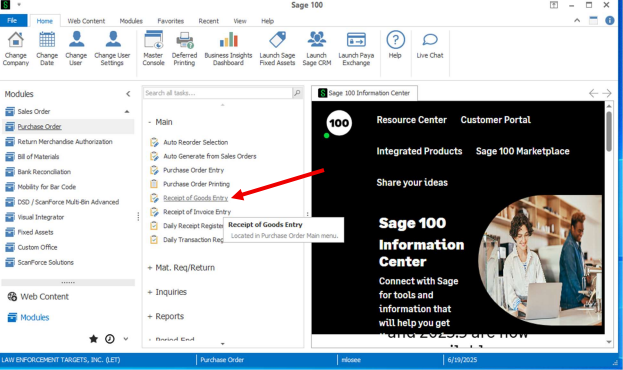
3. Click on "Receipt of Goods Entry" tool from the Main Menu.
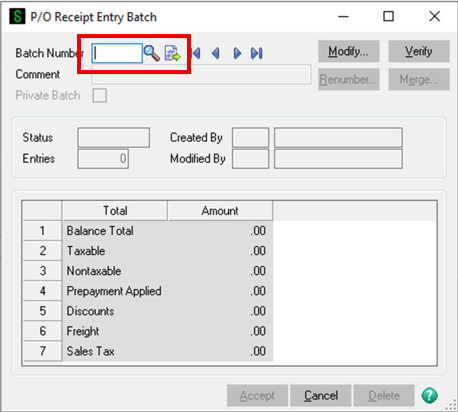
4. Search for an existing receiving batch or make a new batch.
5. Search for an existing receipt in the batch or create a new receipt.
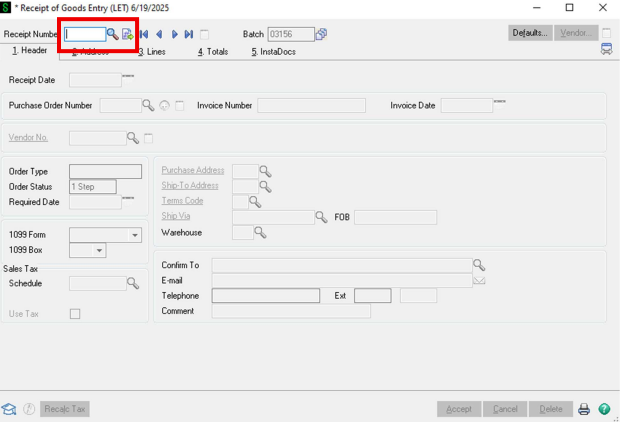
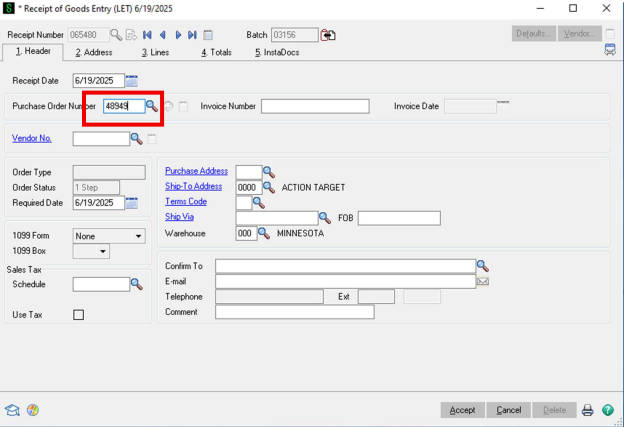
6. Put the PO number in the "Purchase Order Number" box.
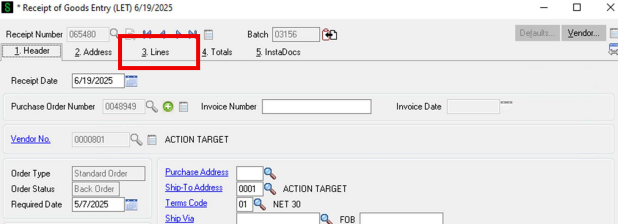
7. Click on the "3. Lines" option near the top of the tool.
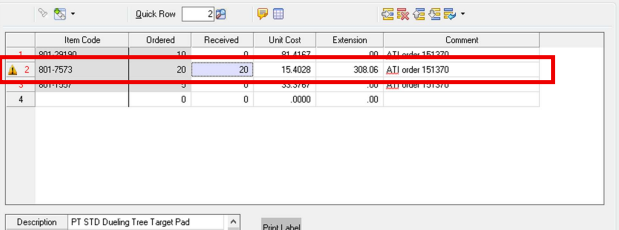
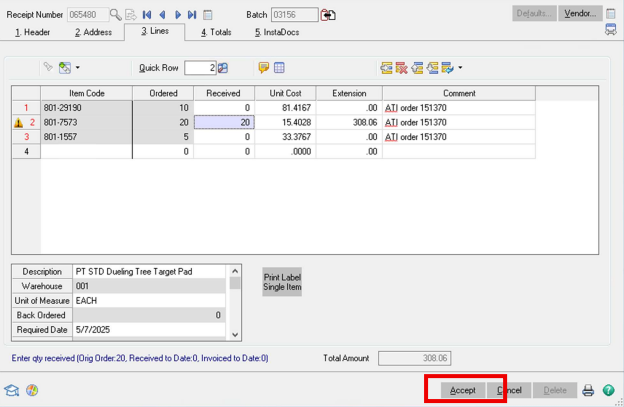
8. Find the line of parts you are receiving and input the quantity you are receiving.
9. Click the "Accept" button
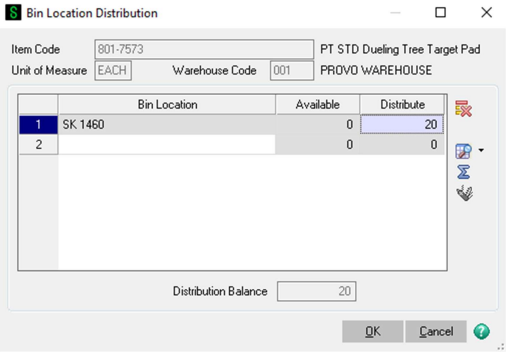
10. Type in or search for the skid that you are receiving the part to. Then click "OK".
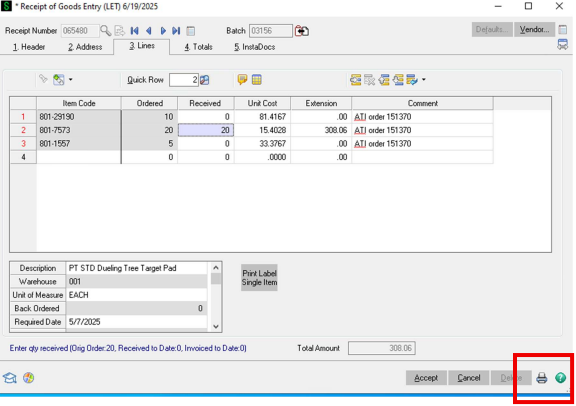
11. When all the lines on the PO are complete, click on the print icon in the lower right corner.
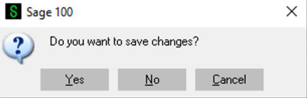
12. Click "Yes".
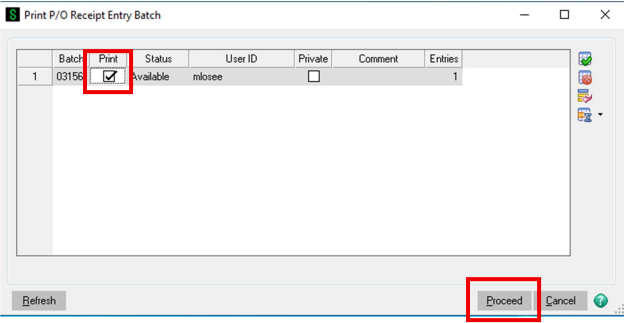
13. Check the "Print" box and then click "Proceed".
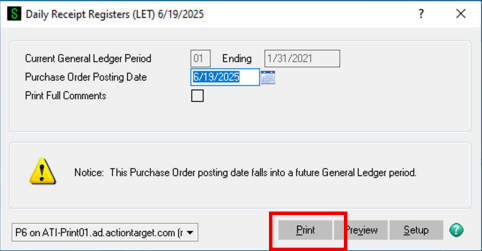
14. Click "Print".
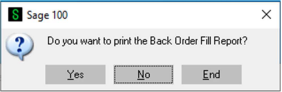
15. Click "No" to printing the "Back Order Fill Report".
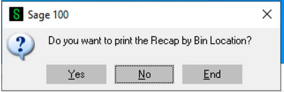
16. Click "Yes" to printing the "Recap by Bin Location".
17. Your web browser will open the printed document which you can review. After reviewing, close the web browser.
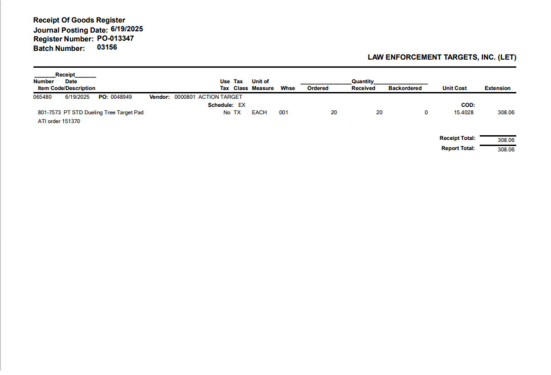
18. Click "No" to updating the "Daily Receipt Registers".
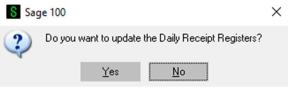
Inventory has been successfully input into Sage
🧠 Additional Notes & FAQ
📅 Last reviewed:
2025-09-24
Author:Tanner Bench
Related Tags:How-To: