
Starship AdHoc Rate Quote
Starship Ad Hoc Rate Quote – Sales Team Training
Purpose
This guide explains how to generate freight rate quotes in Starship without needing to process or ship an order. This allows you to quickly compare rates from multiple carriers and provide accurate freight costs to customers.
Logging In
- Log in to Starship using your assigned User credentials.
-
You will have access to create and view quotes, but you will not be able to process shipments.
Starting a Manual Rate Quote
-
Click "Sage 100 2021 - 2025"
-
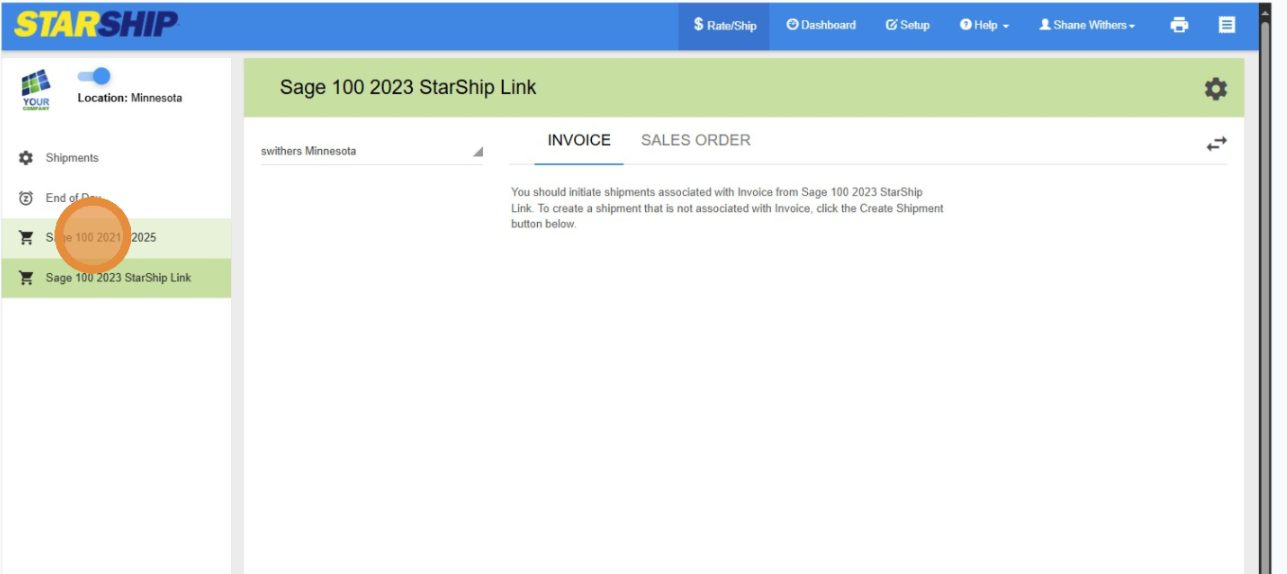
- Navigate to the Shipment Creation Screen
- Click on “Create Shipment” or the equivalent option for manual entry. -
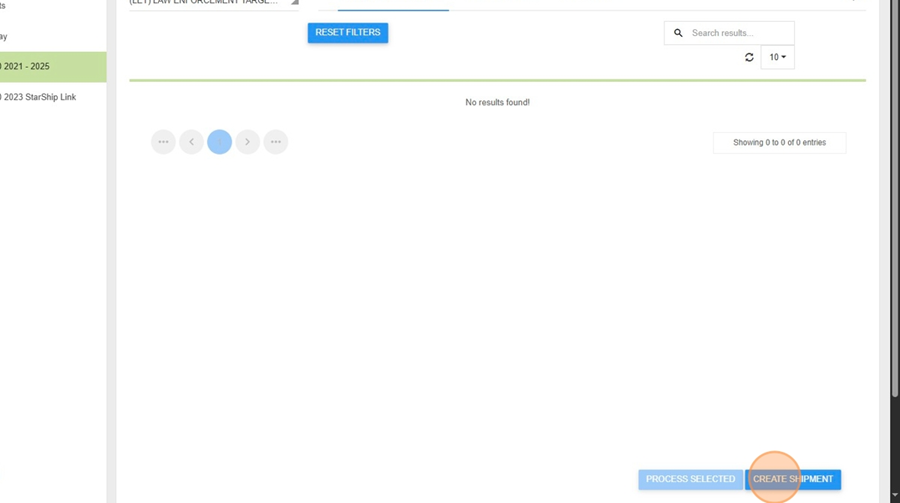
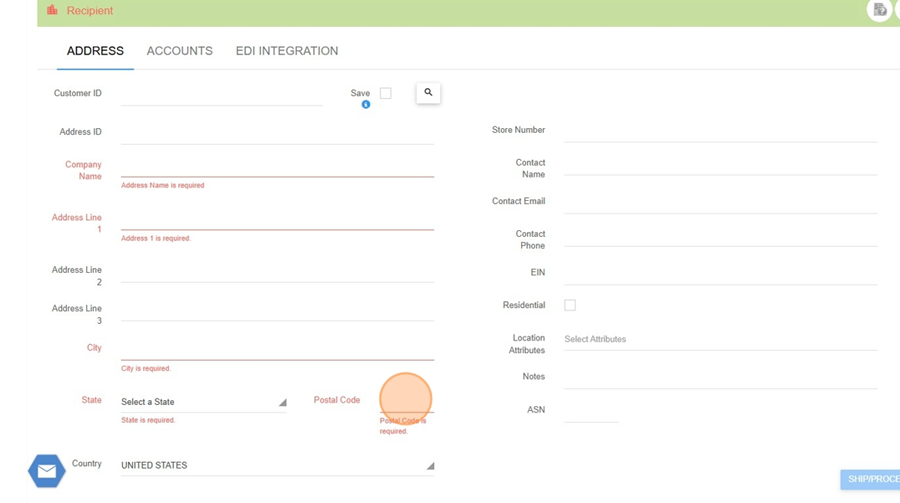
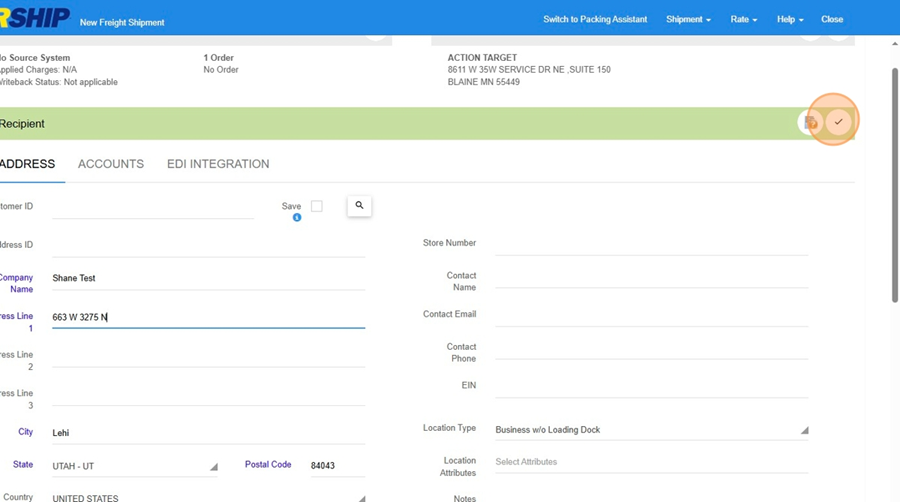
2. Enter Destination Information
- Enter the destination ZIP code. The city and state will auto-populate.
- For other address fields (name, address, etc.), you can enter a period (.) if the actual data is not available. These fields are required but do not affect the quote.
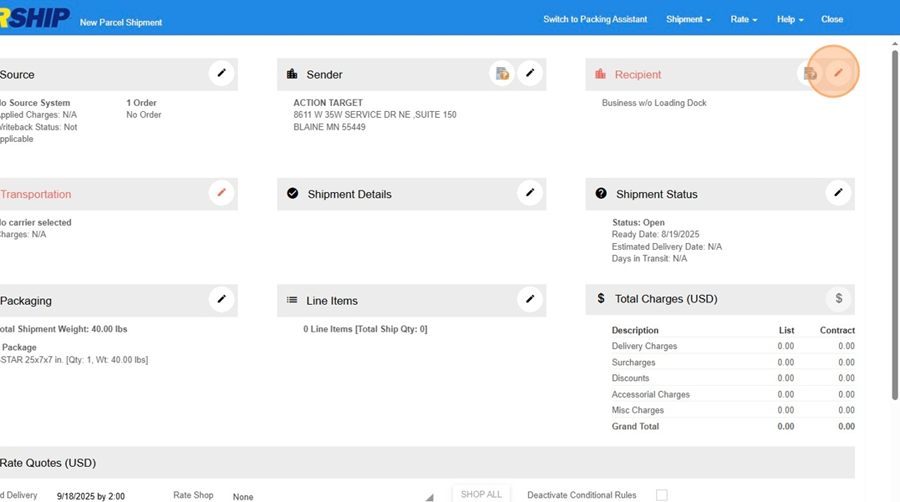
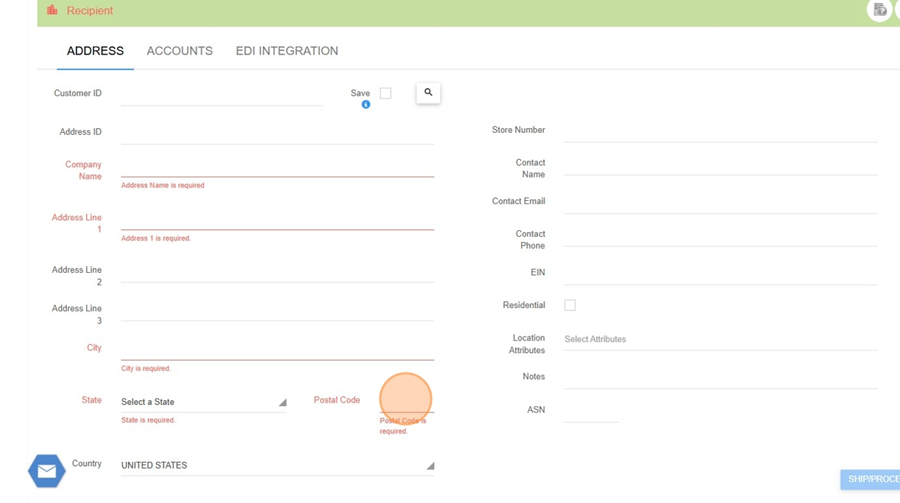
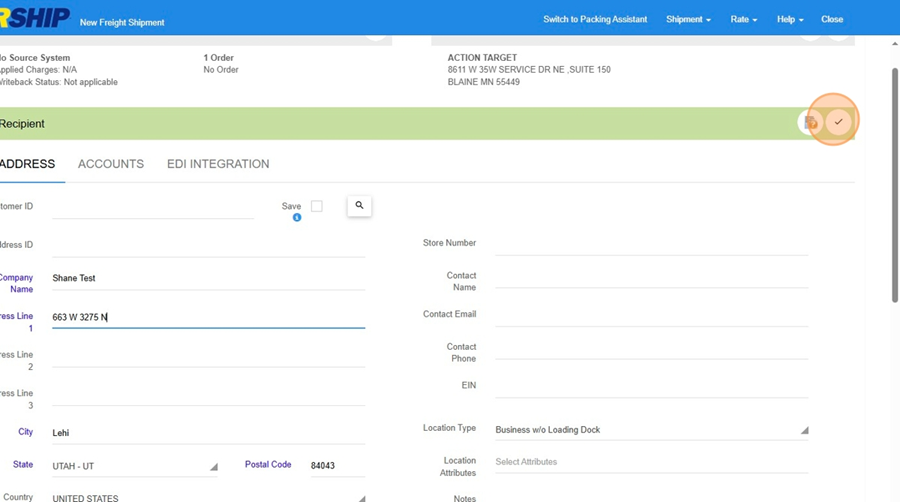
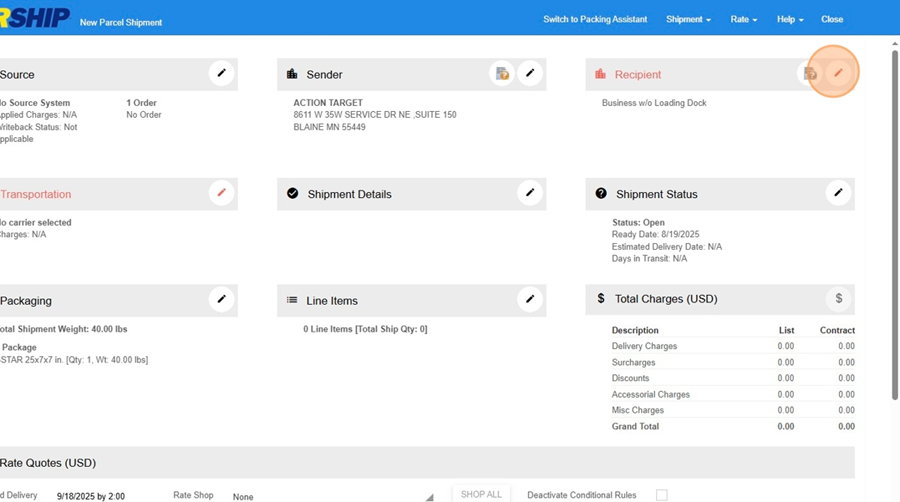
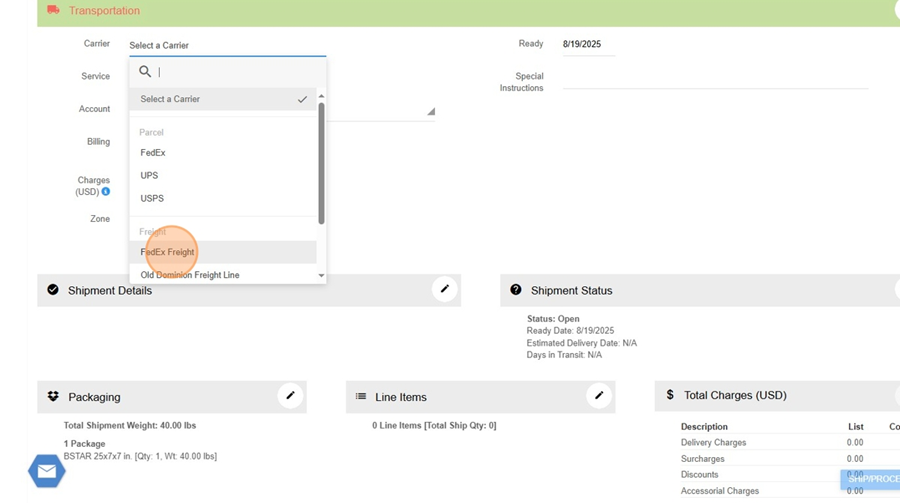
3. Select Carrier Type
- If quoting for LTL (Less Than Truckload), select an LTL carrier (e.g., Old Dominion, FedEx Freight) to enable pallet entry.
- For small parcel quotes, leave the carrier as “No Carrier Selected” or choose a parcel carrier.
-
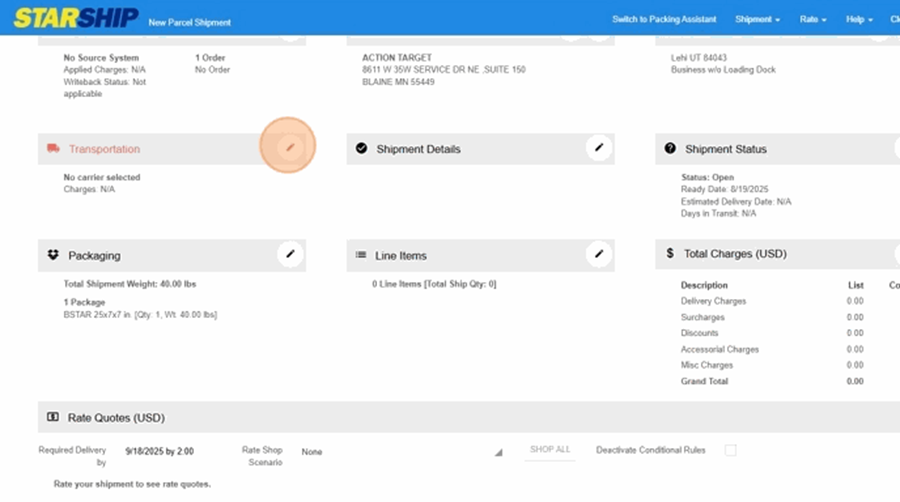
- 4. Enter Package or Pallet Details
- For LTL: Enter the number of pallets, total weight, and dimensions (length, width, height).
- For small parcel: Enter the number of packages, weights, and dimensions as needed.
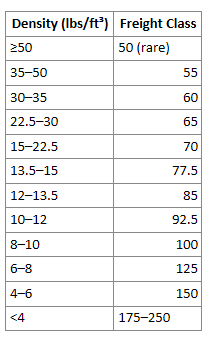
- Select the appropriate freight class or group (e.g., “Steel Targets,” “Cardboard Targets”).
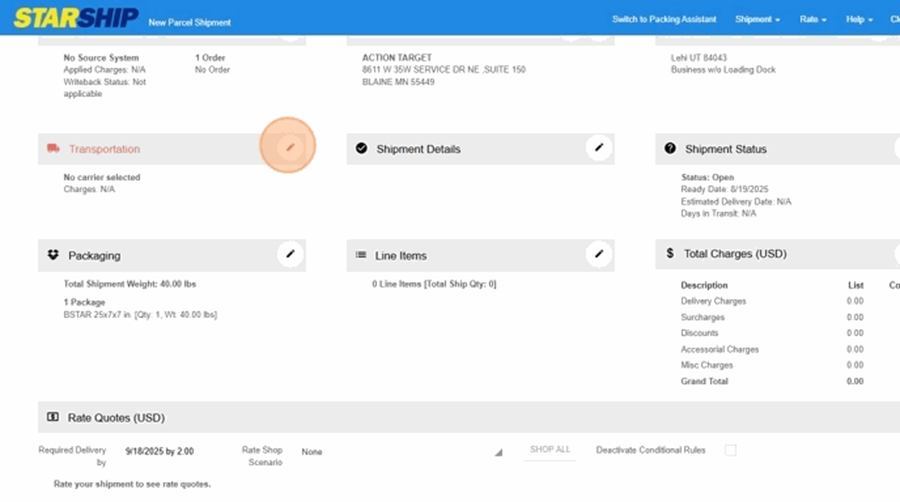
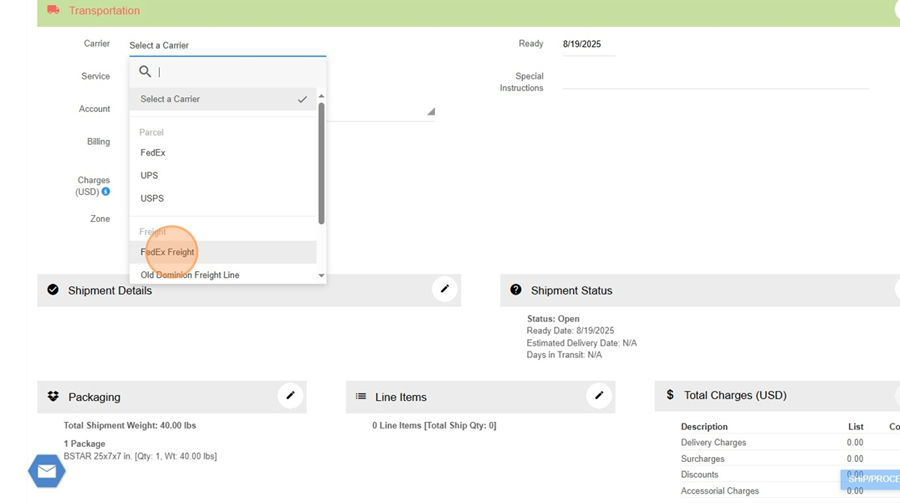
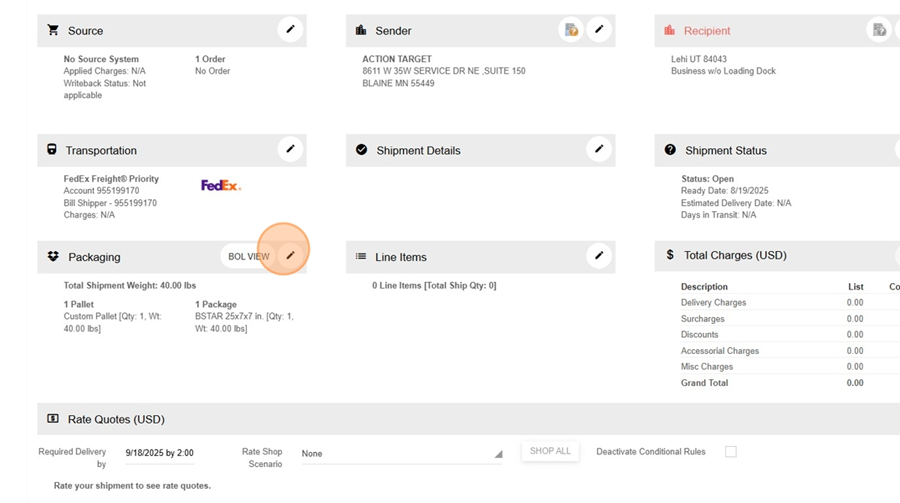
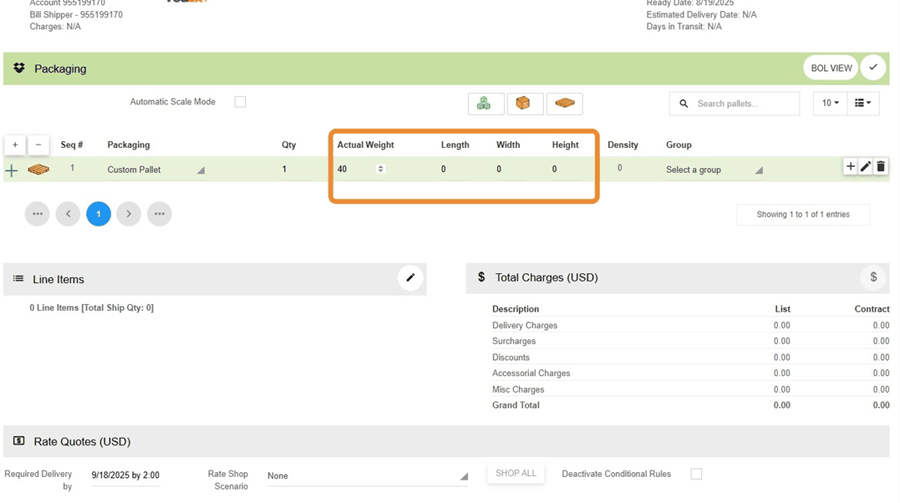
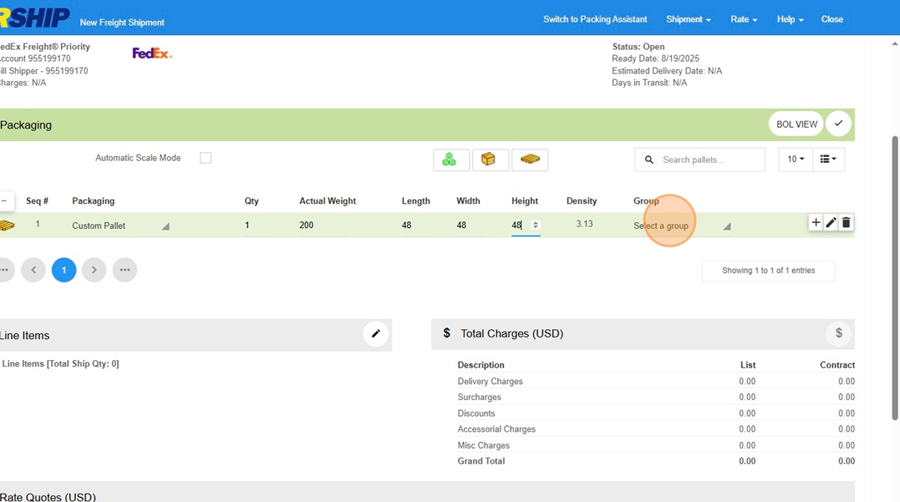
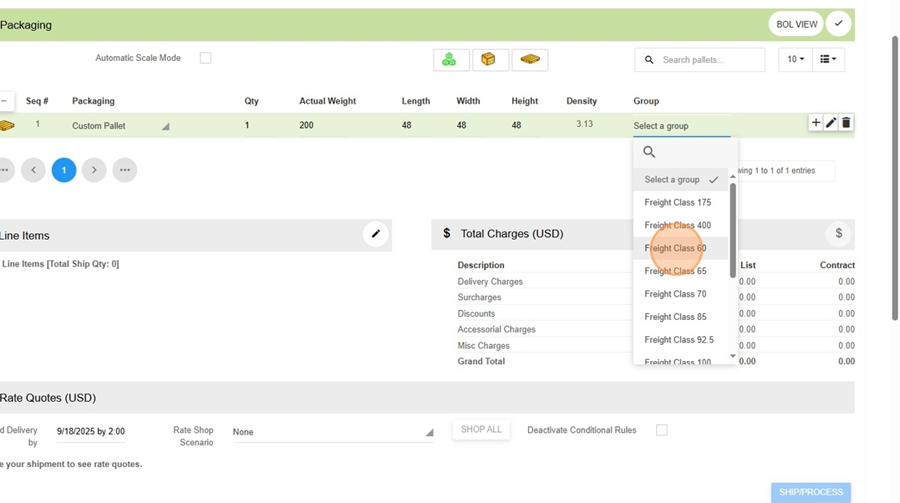
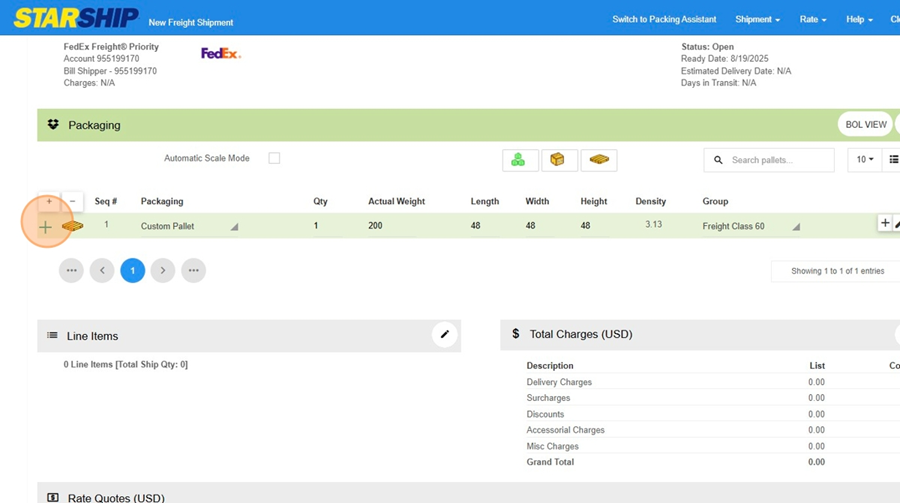
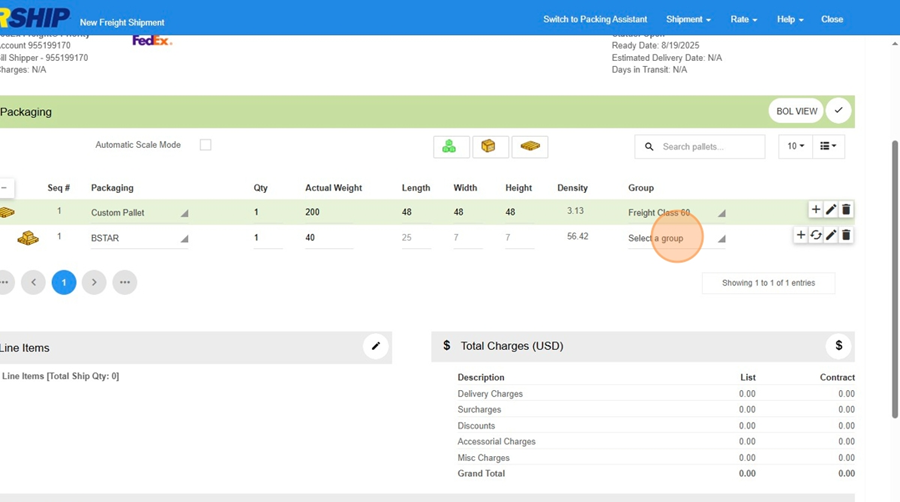
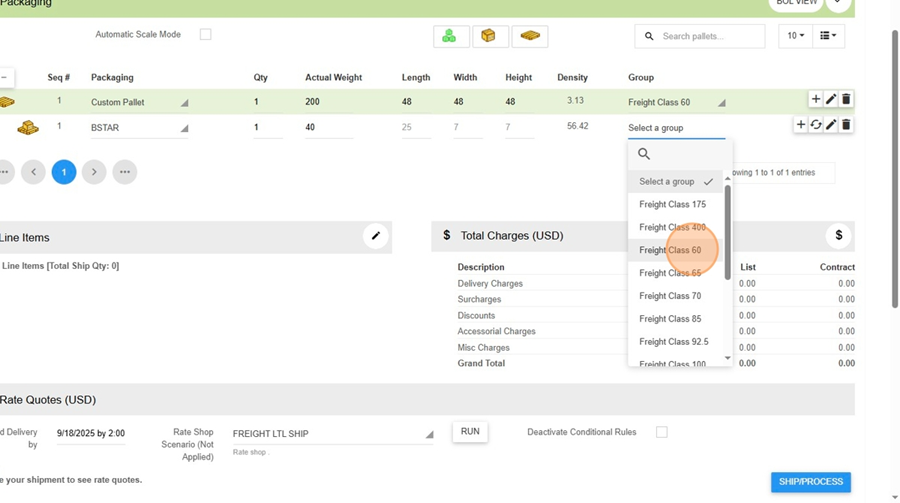
5. **(Optional) Select Carrier**
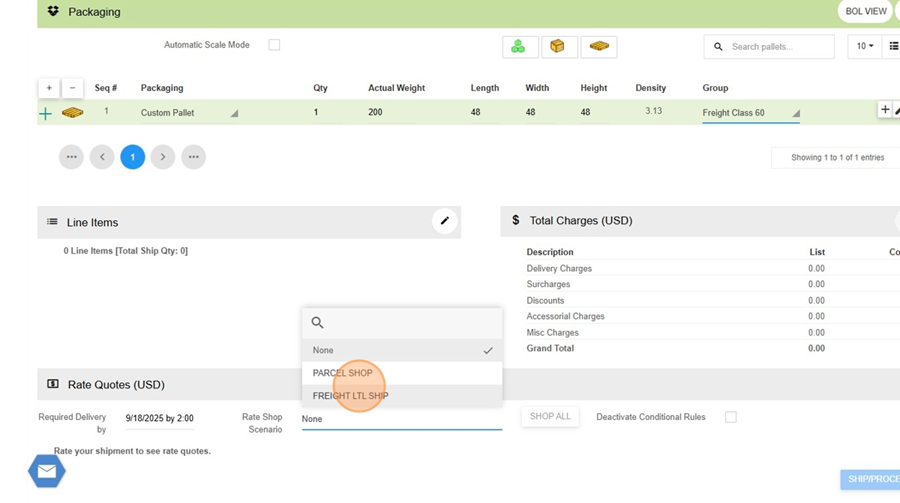
- You can leave the carrier field blank to get quotes from all available carriers, or select a specific carrier to limit results.
---
Running the Rate Quote
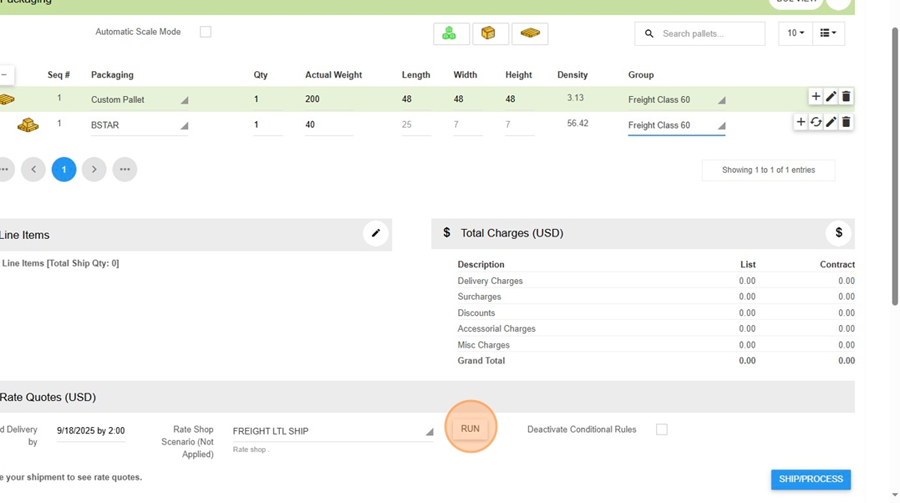
- Click the “Get Rates” or “Run Quote” button.
- Starship will display rate quotes from all configured carriers for the entered shipment details.
- Review the rates and service levels (e.g., Economy, Priority, Guaranteed). 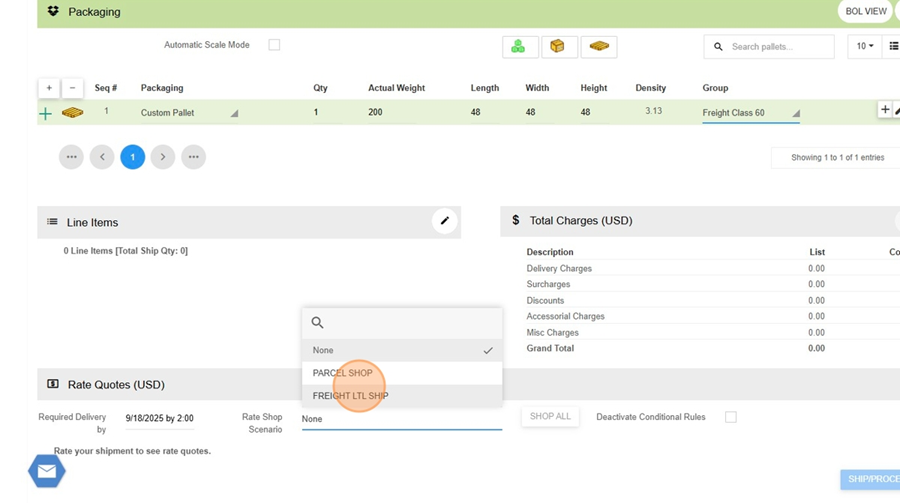
---
Recording the Quote
- Note the desired rate and carrier.
- Enter the quoted freight amount (with any markup, if applicable) into your Sage quote or sales order as needed.
- Standard markup rate is 20%
- Do **not** click “Ship” – as a rate quote user, this option will be disabled
Closing the Quote
- Once you have the information you need, close the shipment window.
- Repeat the process for additional quotes as needed.
---
Tips & Best Practices
- You can get multiple quotes from different carriers in one step—no need to visit each carrier’s website.
- If you’re unsure about weights or dimensions, estimate as closely as possible for the most accurate quote.
- If you need to quote for an existing order, you can import the order number (if it’s not a “quote” type in Sage; currently, only standard and backorder types are supported for import).
- For quoting only (not shipping), always use your “Rate Quote User” login.
No Comments